
19Connect the register
Owner's and installer's guide · edition 2026-11-23 · firmware 2.4.22
The unit needs the text of each receipt as the register produces it. A register gives it out through a serial port, over the network, or from the cloud. All three are set up under Settings › Text Device(s), one tab for each channel: register 1 belongs to channel 1, the camera above it.
By cable: the serial port
This is the connection the unit comes prepared for. Each COM port of the unit carries an iTIVO-FC adapter: one on an iTIVO-IP, two on an iTIVO-IP2. It turns the 9-pin port into an RJ45 socket, so the run to the register is an ordinary network (CAT5/6) cable in place of a thick serial cable, and it can be longer. At the register, the cable ends in the POS adapter that came with the unit. It is made for the register model and plugs into the register.
Run the cable
From the iTIVO-FC on COM 1 to the POS adapter at register 1, and the POS adapter into the register. COM 2 for register 2.
On the unit
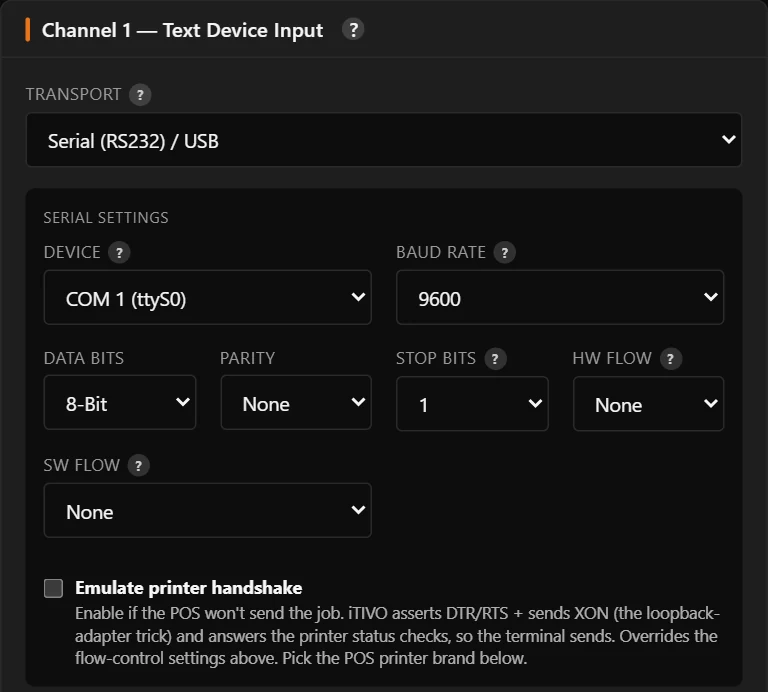
Transport Serial (RS232) / USB, Device COM 1 for channel 1 and COM 2 for channel 2. A channel that was never set up already stands this way.
Match the register
Baud Rate, Data Bits, Parity and Stop Bits as the register sends. 9600, 8-Bit, None, 1 is the most common.
Choose the register's language
Protocol tells the unit how to read what arrives. Plain Text fits most registers. Pick the register's own entry if it is in the list.
Save
Save, then ring up a sale.
Over the network
A register that works over the network, such as Clover, needs no adapters: it sends its receipts to the unit's address.
On the unit
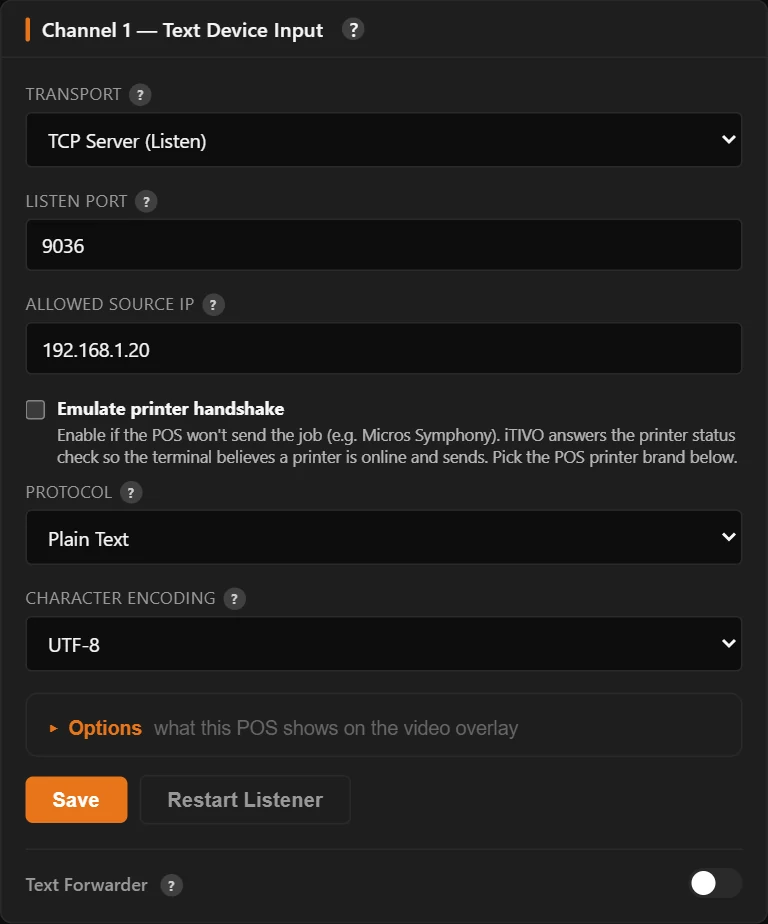
Transport TCP Server (Listen): the unit waits for the register to call. Note the Listen Port: 9036 for channel 1, 9037 for channel 2.
Say who may send
Enter the register's address under Allowed Source IP. The unit then accepts text from that one device only, and refuses everybody else.
Protocol, then Save
Plain Text, or the register's own entry (Verifone, Gilbarco, NCR, Clover, Epson receipt printer format and others). Save: the unit starts listening at once.
On the register
In the register's own setup, switch on sending the receipt or journal over the network, to the unit's address and the port from step 1. This is the register dealer's part.
Is it arriving?
| You see | It means |
|---|---|
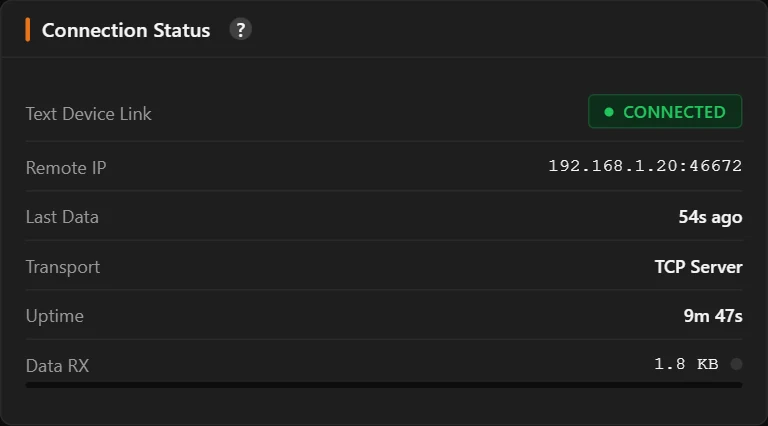
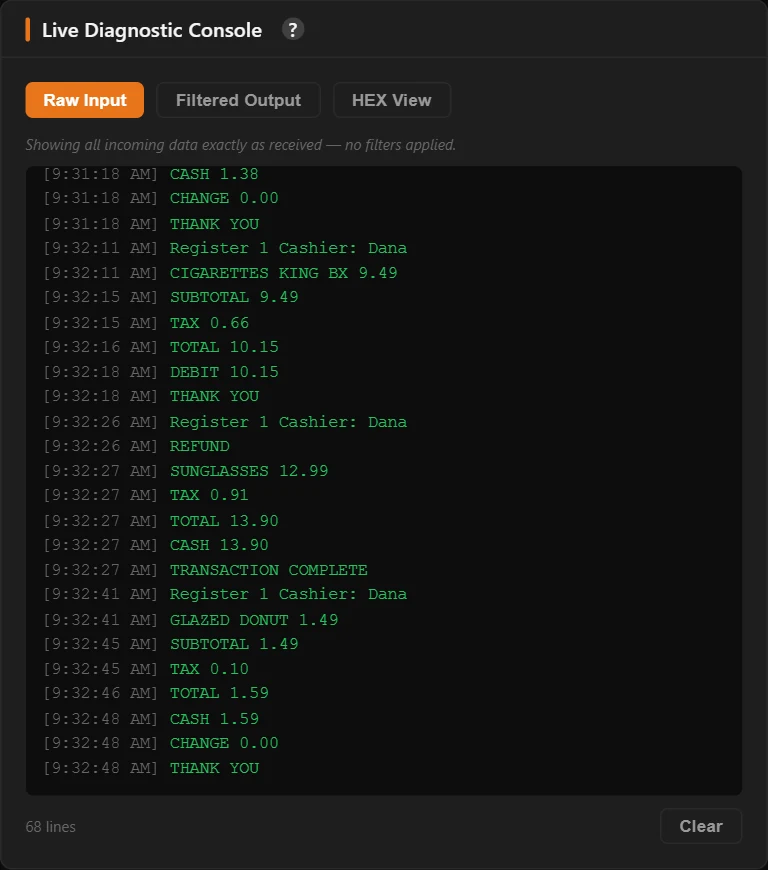
| Text Device Link CONNECTED | The line is open. Ring up a sale: its lines appear in the console under Raw Input, and on the camera in Live View. |
| Nothing under Raw Input on a serial line | Check that the cable is on the right COM port and that the speed matches the register. If the register sends only when a printer answers, see the table below. |
| Text Device Link LISTENING | Network: the unit is waiting, and the register has not called. Check the address and port on the register. Some registers call only when a sale is rung up. |
| Rejected connection from … in the console | A device that is not the Allowed Source IP tried to send. If that device is the register, its address is not the one you entered. |
| Lines under Raw Input, nothing on the video | The text arrives but is filtered out, or the channel is set not to show text. Compare Filtered Output, and look under Options. |
| Unreadable characters | The wrong Protocol or, on a serial line, the wrong speed. A register may also send printer control codes. HEX View shows exactly what arrives; Text & Character Filtering can strip codes and separator lines. |
Other ways a register can be connected
| The register | Set on the unit |
|---|---|
| Sends only when a printer answers | Tick Emulate printer handshake and choose the printer brand. The unit answers the register's “are you ready?” the way the printer would. |
| Wants the unit to call it | Transport TCP Client (Connect Out), with the register's address and port. |
| Is a cloud register (Square, Toast) | Protocol Square POS - API or Toast POS, and the cloud section of the page. No cable and no adapter. The sales come in over the unit's remote link, so Auto-Connect on Boot must stay on (chapter 12). |
| Already feeds another device | Text Forwarder passes a copy of everything the unit receives on to that device, so both keep working. |
| Is on a unit without COM ports | A USB-to-serial adapter in a USB port takes the place of the COM port. It appears under Device. |
Watch the register cabling
COM1 and COM2, the gray adapters, the CAT cable and the adapter at the register. Each video starts at that part.
Kits for your register
Each kit comes with the adapter or cable for that register.