
8Alerts by e-mail and WhatsApp
Owner's and installer's guide · edition 2026-11-23 · firmware 2.4.22
An alert tells you about a keyword within minutes, wherever you are: an e-mail with the snapshot attached and a button that plays the clip. Three things must be in place: a way to send mail, somebody to send it to, and the Email switch on the keywords you care about.
E-mail, set up in a few minutes
 1
2
3
4
Send through your own e-mail account
Choose your e-mail provider in the list (Gmail, Microsoft 365 or another) and enter the details of an account of yours. Gmail asks for an App Password, not your normal one; the page links to where Google creates it. Your alerts then go out through an account you control. Test Relay 1 (Courtesy Account), which a new unit is set to, is there for a quick test only: to see an alert arrive on the first day, before your own account is entered. It is a free service with no guarantee that it works every time. Do not use it for your store's day-to-day alerts.
Say who gets the alerts
Up to three addresses: yours, a partner's, a manager's.
Put the store's name in the subject
Subject Prefix starts every alert's subject line. With [Cedar Fork] instead of [iTIVO-IP] you see at once which store it is, and your mail program can sort the alerts into a folder of their own.
Save, then test
Save Email Settings, then Send Test Email. Find the test in your inbox. If it landed in the spam folder, mark it as “not spam” once, so that real alerts are not hidden later.
Switch on the keywords
An alert is only sent for a keyword whose Email switch is on, under Exception Keywords (chapter 7).
What an alert looks like

The subject names the keyword and the channel, so you can judge it from the list of your inbox. Inside:
- Keyword, channel and the line exactly as the register printed it, with the date and time of the store.
- The snapshot, attached: the counter in that second, with the receipt on it.
- Watch the video clip plays the clip in your browser, straight away and without signing in.
- Open the full event in iTIVO-IP takes you to the unit's Search / Logging page, after signing in.
Under Exception Video Clips you choose how the clip travels. Link (recommended) keeps the e-mail small, so it arrives reliably. Attach video clip to the email puts the file in the e-mail itself; some mail services delay or refuse e-mails of that size.
Not too many, and none lost
| On the page | What it tells you, or does |
|---|---|
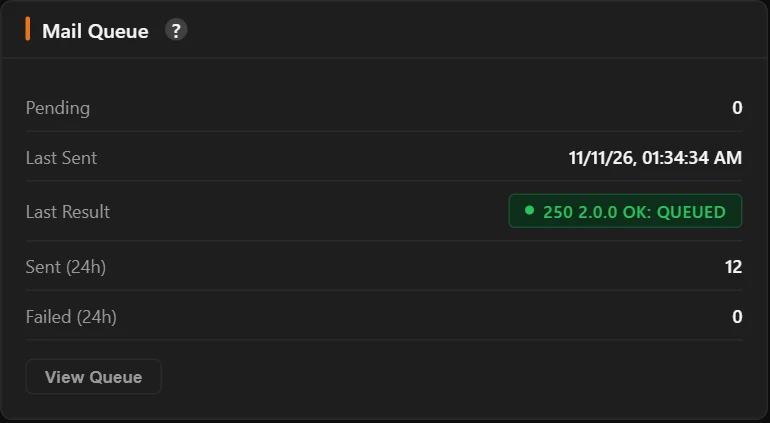
| Mail Queue | Last Result in green means the mail service accepted the last alert. Pending counts alerts that are waiting their turn. Failed (24h) above zero means alerts could not be handed over: press View Queue to see why. |
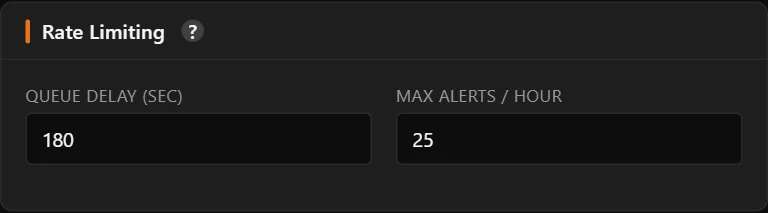
| Queue Delay (sec) | The shortest time between two alerts for the same keyword. With 180, three voids within a minute become one alert now and the next ones three and six minutes later, each with a note saying how long it waited. |
| Max Alerts / Hour | The most alerts the unit sends in one hour, all keywords together. The rest wait. An alert that has waited six hours is dropped; the event itself is never lost and stays in Search / Logging. |
- Is the event there at all? Look in Search / Logging. If it is missing, the keyword is switched off, or the register words it differently (chapter 7).
- Is Email on for that keyword, and did you press Save Changes?
- Does Send Test Email arrive? If not, check the addresses, then the spam folder. If the unit still sends through the courtesy account, set up your own account (step 1 above).
- Is Pending above zero? Then it is on its way, held back by the limits above.
- Was the store's internet down? Alerts need it. They go out when it is back.
WhatsApp BETA
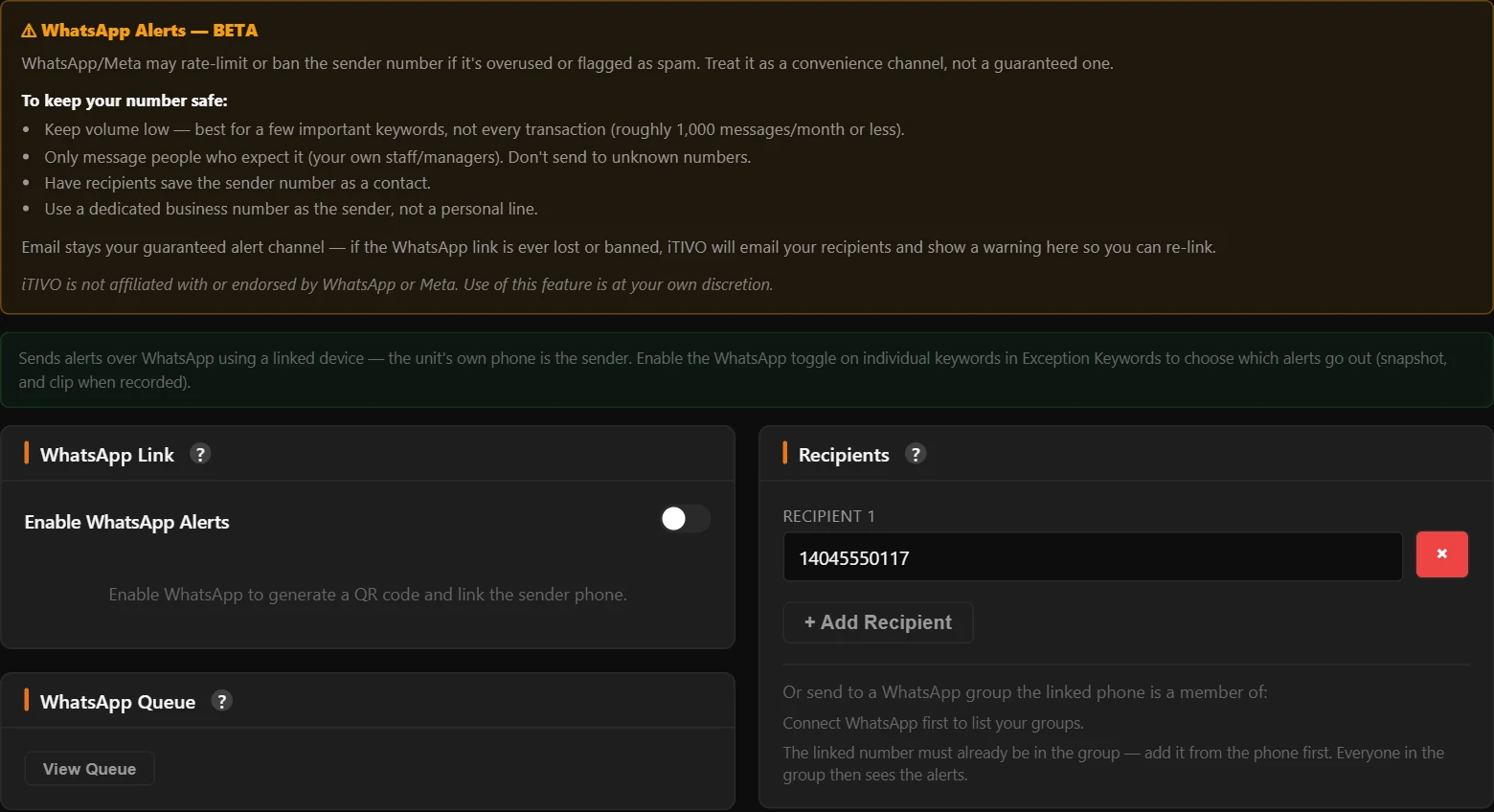
The unit can also send each alert as a WhatsApp message, with the snapshot and the clip. It sends through a phone of yours that you link once:
- Switch on Enable WhatsApp Alerts. The page shows a QR code.
- On the phone that will be the sender, open WhatsApp, choose Linked devices and Link a device, and point it at the code.
- Under Recipients, add the numbers that should get the alerts, each with its country code and no spaces or signs (a US number starts with 1). Or choose a WhatsApp group that the sender phone belongs to: everybody in the group then sees the alerts.
- Save WhatsApp Settings, then Send Test Message.
- Switch on WApp for the keywords you want, under Exception Keywords.
Read the note at the top of the tab before you start. WhatsApp is a service of its own: whether a message goes out and arrives depends entirely on WhatsApp, its availability and its rules, which iLinkPro neither controls nor supports. WhatsApp may block a number that sends too much, so keep this for the few keywords that matter, use a business number and not your personal one, and send only to your own people. E-mail stays the dependable way; switch on Email me if the WhatsApp link drops and the unit tells you when the phone needs to be linked again.
Copies to your own server or Google Drive
The FTP / SFTP and Google Drive tabs let the unit copy each snapshot and clip to a place of your own, where they stay for as long as you like. They are set up once, usually by your installer or whoever looks after your computers, and then switched on keyword by keyword with FTP and GDrv.