
3Signing in, in the store and from anywhere
Owner's and installer's guide · edition 2026-11-23 · firmware 2.4.22
The unit has no program to install. Its pages open in the browser you already use, on a computer, a tablet or a phone: on the store's own network, or from anywhere else through a private link that iLinkPro keeps open for your unit.
 1
2
3
4
5
6
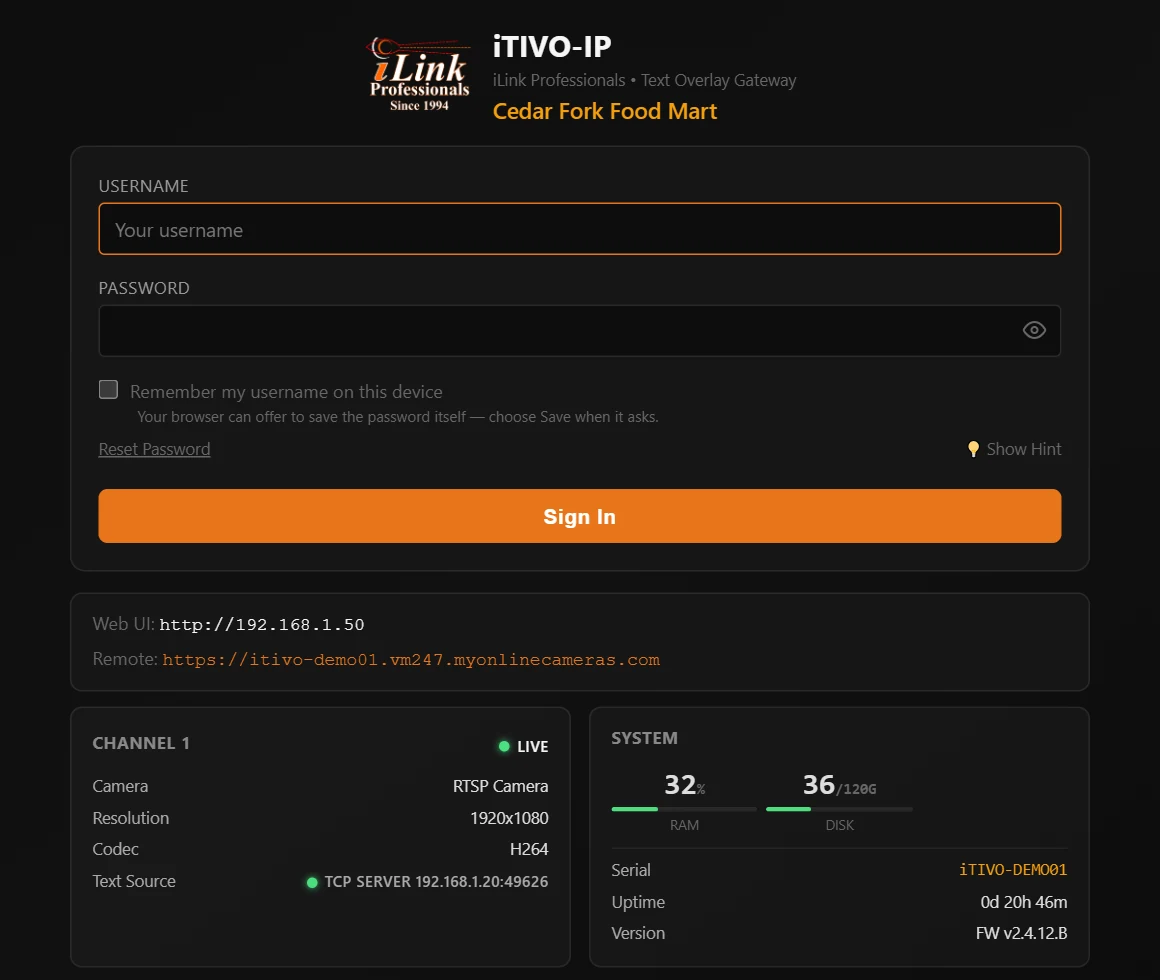
Two addresses, one unit
| Where you are | What to type in the browser | Good to know |
|---|---|---|
| In the store | The Web UI address, for example http://192.168.1.50 | Works on any device that is on the store's network, by cable or Wi-Fi. It also works when the internet is down. |
| Anywhere else | The Remote address, for example https://itivo-demo01.vm247.myonlinecameras.com | The same pages, from home or on the road. Nothing is opened or changed on the store's router, and no app is needed. |
The six letters and numbers after itivo- are your unit's Device ID. It is the same ID you see as iTIVO-DEMO01 on the sign-in page, on the About page and on a TV plugged into the unit. Your own unit has its own ID, so your Remote address is yours alone. The address printed in this guide is only an example and leads nowhere: read yours from the sign-in page of your own unit.
The quickest way is the QR sticker on the side of your unit. Point your phone's camera at it and tap the link that appears: it opens the Remote address of that unit, with nothing to type.
The first time you sign in
Sign in with what your installer gave you
A new unit comes with one account, admin, and a starting password that every installer knows.
Make the password your own
The unit reminds you with a banner and, after a few sign-ins, shows Secure your iTIVO and will not go on until you have chosen a new password of at least 8 characters. On the same page it asks for a recovery e-mail address and two security questions. Fill them in: they are how you get back in by yourself if you ever forget the password.
Give other people their own account
A manager who should only look, not change, gets a separate user name with fewer rights. That takes a minute; see chapter 11. Do not share the admin password.
On your phone
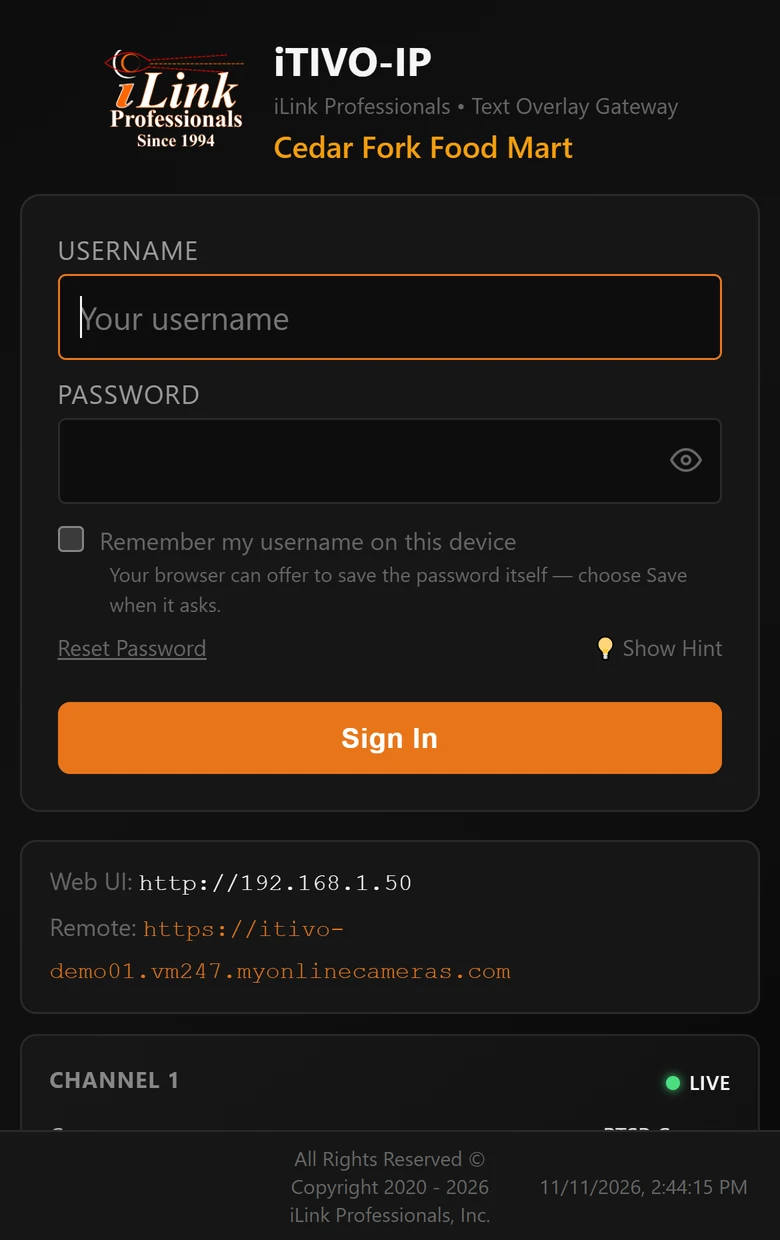
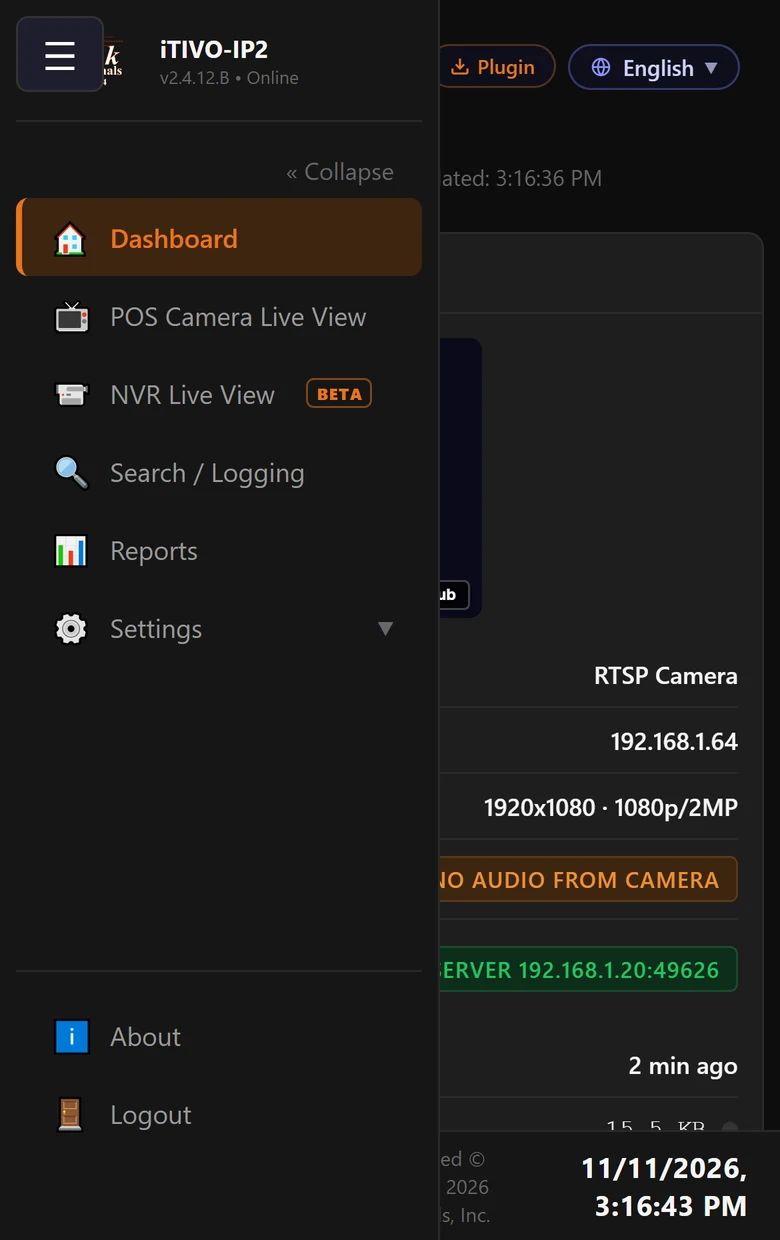
Every page fits a phone. The menu that sits on the left of a computer screen is folded away behind the button with three lines, at the top left. Tap it, choose a page, and the menu closes again.
Pull the page down to refresh it.
Away from the store, the pages are the same. Two things are different:
- Live video takes a moment longer to start and may run a little behind, because it travels over the internet. A small tag on the picture, such as P2P, shows that you are watching from outside.
- If the store's internet is down, the Remote address cannot reach the unit. The unit keeps working, and everything it marked meanwhile is there when the internet is back.
For your safety the unit signs you out after 30 minutes without use. Sign in again to carry on.
Finding your way
| In the menu | What it is for | Chapter |
|---|---|---|
| Dashboard | One look: are the cameras, the registers, the recorder and the internet all connected? | 4 |
| POS Camera Live View | The register cameras, live, with the receipt text on them. | 5 |
| NVR Live View BETA | The other cameras of your recorder, if your installer has linked the recorder to the unit. | 5 |
| Search / Logging | Everything that happened: each exception with its snapshot and clip, every sale, every item sold. | 6, 10 |
| Reports | The same facts as charts and totals: by day, by hour, by cashier. | 9 |
| Settings | Opens a second list. An owner mostly needs Exception Keywords, Notifications and Security & Users. The rest belongs to the installer (Part 2). | 7, 8, 11 |
| About | Model, Device ID and software version: what iLinkPro Support asks for when you call. | 12 |
| Logout | Signs you out. Use it on any device that is not yours. |
The top of every page shows your store's name and a green System OK while the unit answers. A Viewer account sees only the Dashboard, Live View, Search and Reports, and cannot change anything.