
5Watching live
Owner's and installer's guide · edition 2026-11-23 · firmware 2.4.22
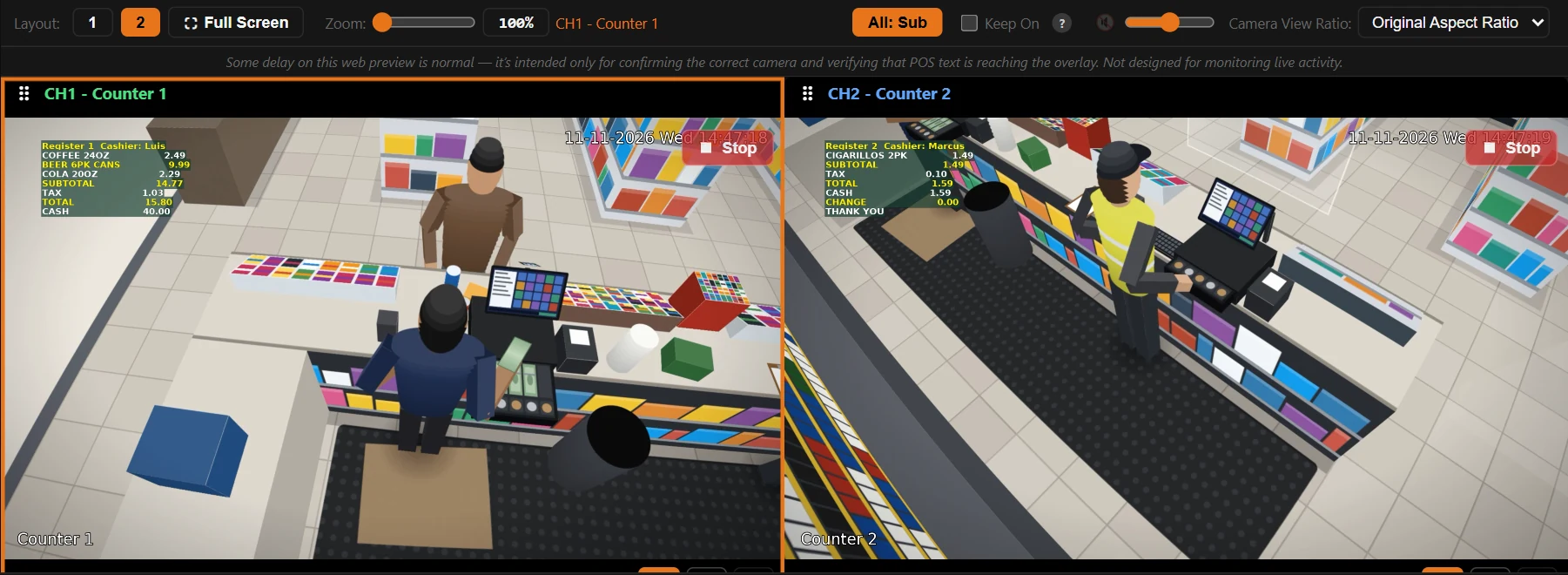
POS Camera Live View shows your register cameras as they are right now, with the receipt building up line by line while the cashier rings. It is the quickest way to see that the right text is on the right camera, and to look in on the store from wherever you are.
 1
2
3
4
5
6
7
A
B
C
D
E
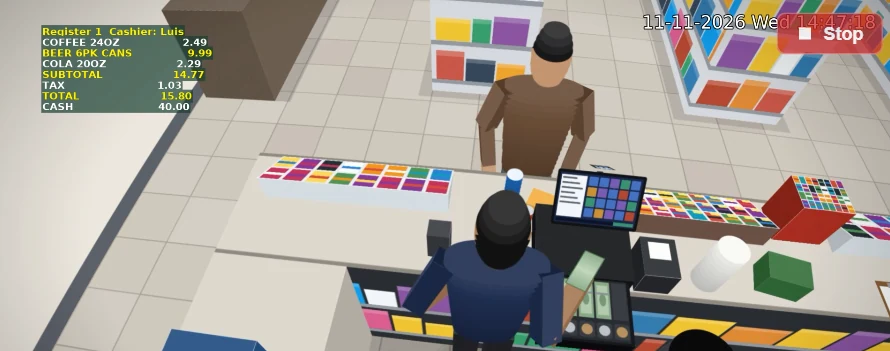
The toolbar
The numbers are the ones above the picture on the page before.
| Control | What it does | |
|---|---|---|
| 1 | Layout 1 2 | One camera filling the page, or both side by side. With one camera, two arrows step from one register to the next. |
| 2 | Full Screen | Hides the menu and the browser's bars. Double-click a picture to give that one camera the whole screen. The Esc key brings everything back. |
| 3 | Zoom | Enlarges the selected picture, up to 4 times: to read the screen of the register, or to see what is in a hand. |
| 4 | All: Main | Switches every picture to the camera's full-size stream. It is sharper and uses much more data. The button then reads All: Sub, to go back. |
| 5 | Keep On | Normally the pictures stop by themselves after 30 minutes. Tick this to keep them playing, and to keep this screen awake, for as long as the page is open. It uses more data, and more battery on a phone. |
| 6 | Volume | For a camera that sends sound, once you have switched its sound on (below). |
| 7 | Camera View Ratio | Original Aspect Ratio shows the whole picture in its true shape. Full Cell fills the space, and 4:3 and 16:9 force a shape. |
On each picture
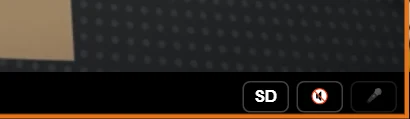
| SD / HD | This one picture in the light stream (SD) or the full-size one (HD). |
| Speaker | Sound from this camera on or off, if the camera has a microphone. |
| Microphone | Hold to talk through the camera's loudspeaker. Lit only for cameras that can do this. |
A register was replaced last week, and you want to be sure the text still lands where it should. Ask the cashier on register 1 to ring up a pack of gum while you watch Live View. The line must appear on Counter 1, within a second or two, and the items must be the ones you see on the counter. Do the same on register 2. If the text shows up on the other camera, or not at all, your installer has two cables or two settings to swap (chapter 19).
It is 10:40 at night. On your phone, the Remote address and POS Camera Live View show the counter, the cashier, and each sale as it is rung up: the items, the total, cash or card. You are not hunting for anything. A minute is enough to see that the store is open, the counter is staffed and sales are being rung up the way they should. For anything that already happened, do not wait in front of the live picture: Search / Logging finds it for you (next chapter).
The register's screen, on the recording too
The camera shows the hands, the cash and the counter. The register's own screen shows what was rung up, voided or changed. With the Live Screen View option, an iScreen HDMI Capture USB 3.0 device with a loop-out HDMI port, iTIVO-IP also takes the picture of the register's screen, exactly as the cashier sees it, and puts it where you look anyway:
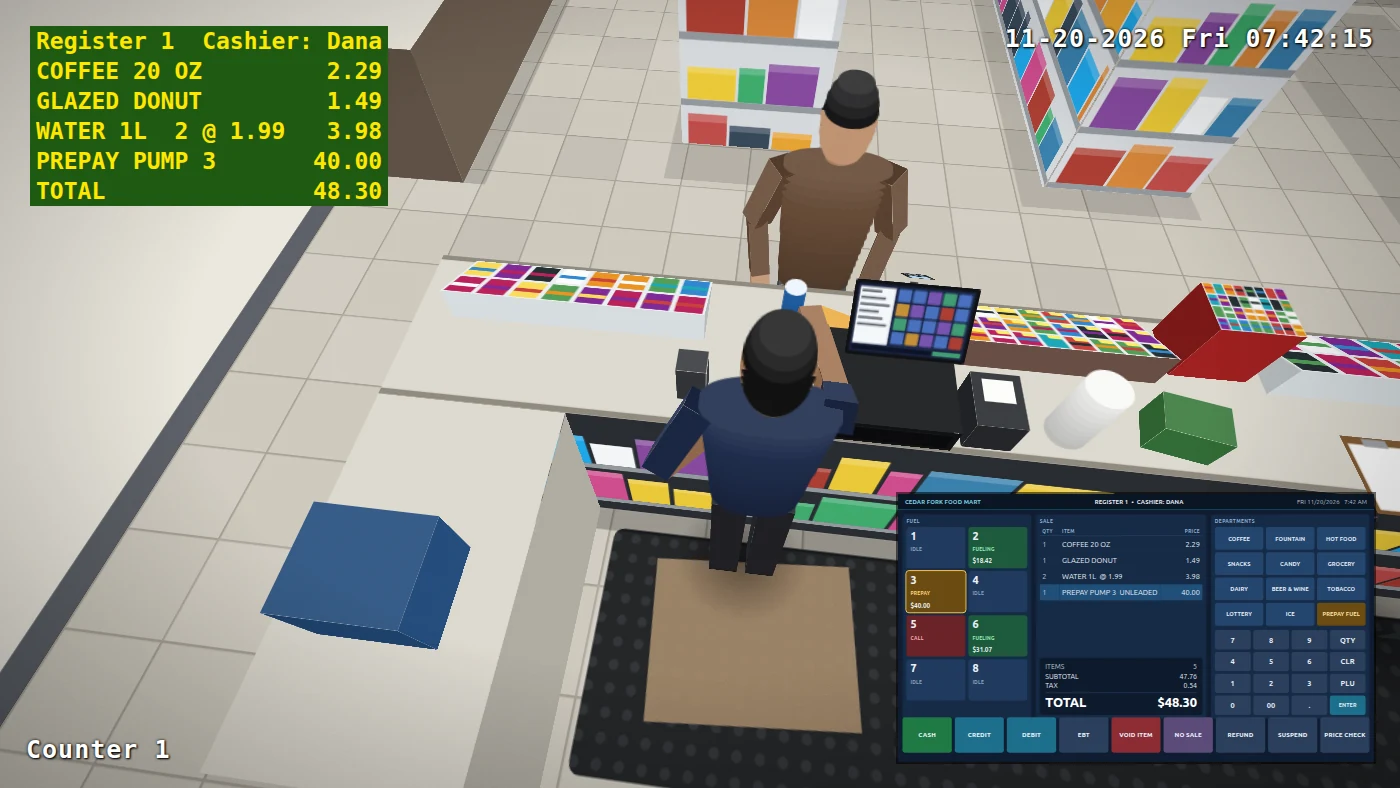
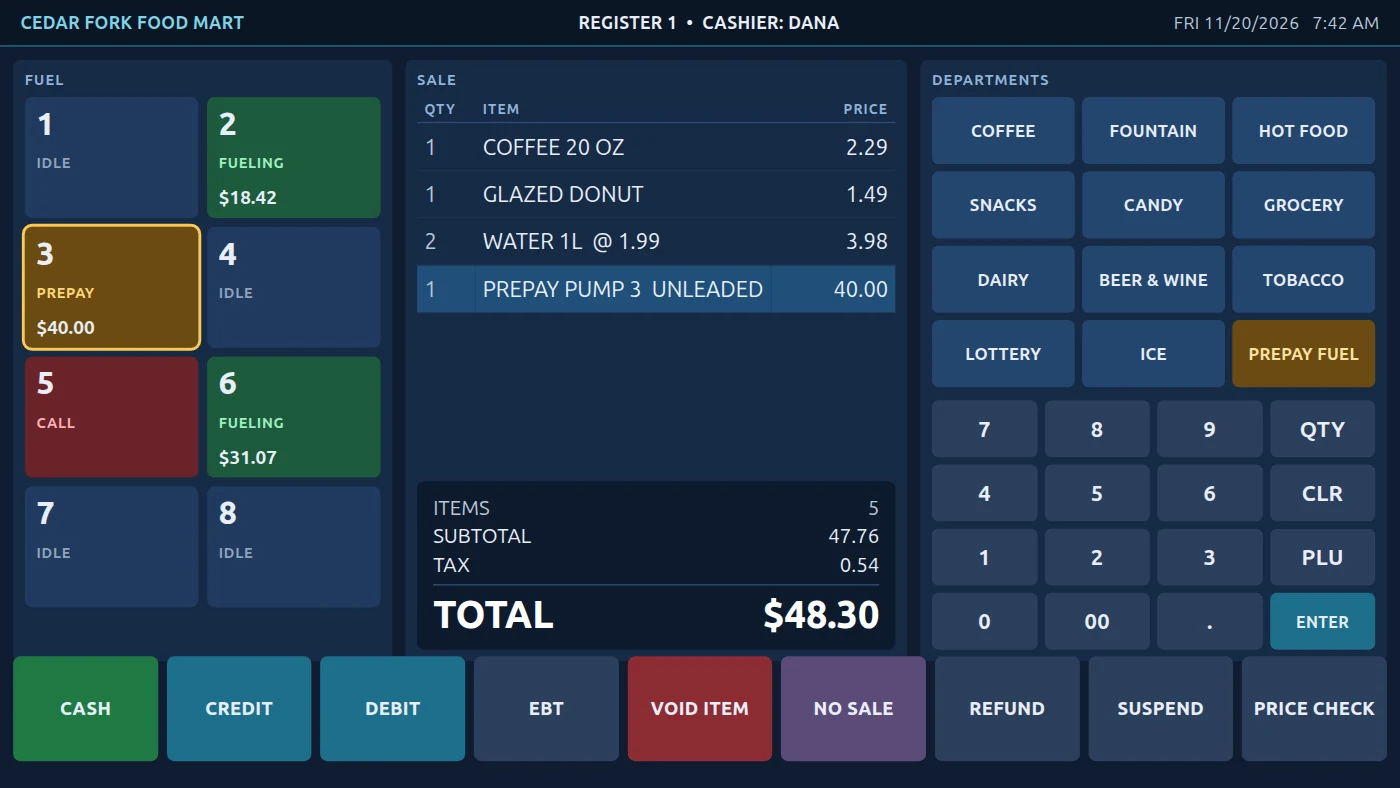
- It is a picture, not text. The unit does not read the screen. Alerts, Search / Logging, Reports and Theft Review still come from the register's text connection, as before.
- One screen on iTIVO-IP, two on iTIVO-IP2 (Monitor 1 and Monitor 2). Each needs its own capture device.
- Sound too, if you want it. When the register's screen carries sound, it can come along, one way only.
An alert says NO SALE on register 2 at 3:12 in the afternoon. The camera shows Marcus opening the drawer and closing it again. With the register's screen in the corner of the same picture, you also see what was on his screen at that moment: an empty sale, and no price check or refund waiting. One recording answers both questions: what the hands did, and what the register showed.
Your other cameras: NVR Live View
NVR Live View BETA shows the other cameras of your recorder on the same kind of page: the door, the aisles, the pumps. It works once your installer has given the unit the recorder's address and password, under Settings › NVR Live & Playback. The same link also lets Search / Logging play the recorder's own recording of a moment you picked (chapter 6).