
12Updates and support
Owner's and installer's guide · edition 2026-11-23 · firmware 2.4.22
The unit looks after itself: it installs its own updates at night and keeps a private line open so that you, and iLinkPro Support when you ask for it, can reach it from anywhere. This chapter shows where to see that, and what to have at hand when you call.
Updates install themselves
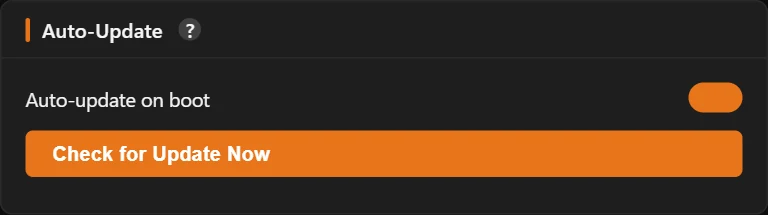
With Auto-Update on, as it is when the unit is delivered, the unit checks for new software every night and installs it between 2:00 and 4:15 in the morning, store time. You do not have to do anything.
An update takes a few minutes. The unit does not switch off; it restarts its own programs, so the register cameras may drop out of the recorder for a minute or two and then come back by themselves.
To update by hand, for example because iLinkPro Support asked you to: press Check for Update Now. The page answers Up to date, or offers Download & Install with the new version number. It then shows each step, from Downloading update… to Restarting services…, and reloads by itself when the unit is back.
What to have at hand when you call
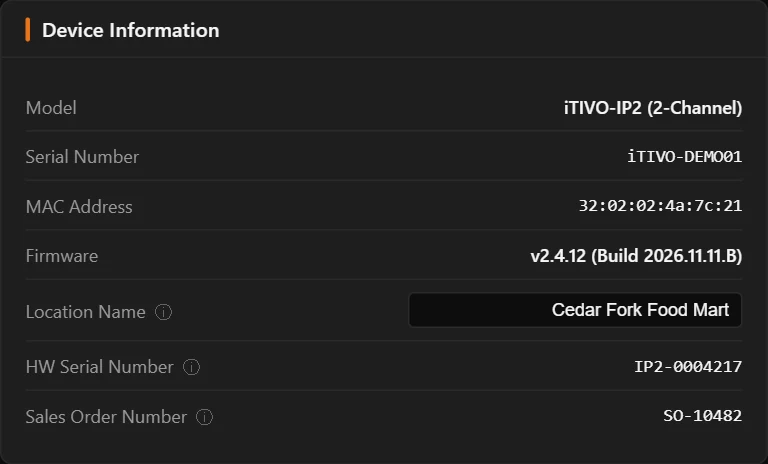

Open About and read out, or send a picture of, the Device Information card. Support needs three lines of it:
- Serial Number: your Device ID, such as iTIVO-DEMO01. With it, support finds your unit at once.
- Firmware: the software version the unit runs.
- Model: iTIVO-IP (one register) or iTIVO-IP2 (two).
Your first call is your dealer or installer, who knows your store, your cameras and your register. iLink Professionals stands behind them: 678-971-9999, or the contact form at www.ilinkpro.com/contact.
Location Name on the same card is the store name shown at the top of every page and on the sign-in page. Click it to change it, for example after the store has been renamed.
The private line: Remote Support
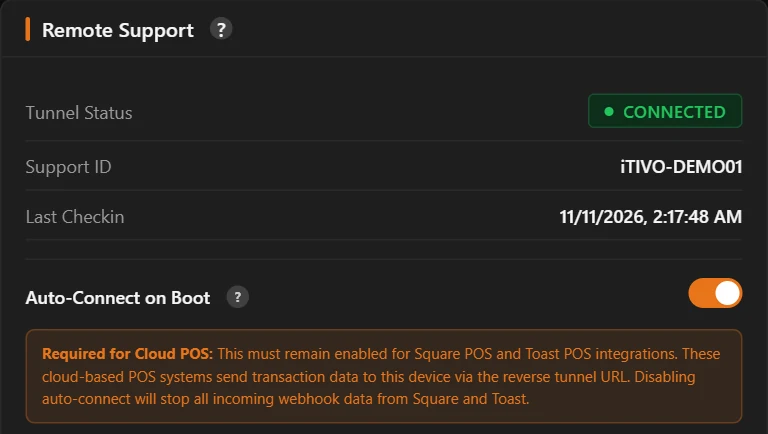
The unit itself opens a protected connection out to iLinkPro's servers and keeps it open. That one connection is what makes your Remote address work (chapter 3), and it is how a support technician can look at the unit with you on the phone. Nothing is opened on your router, and nobody can come in from the internet any other way.
- Tunnel Status CONNECTED: the line is up.
- Last Checkin: when the unit last reported to iLinkPro.
- Auto-Connect on Boot: leave it on. Without it, the Remote address stops working after the next restart, and a cloud register such as Square or Toast can no longer send its sales to the unit.
If Tunnel Status is not connected, the store's internet is the first thing to check.
The recorder's or a camera's own page: Remote Device Access
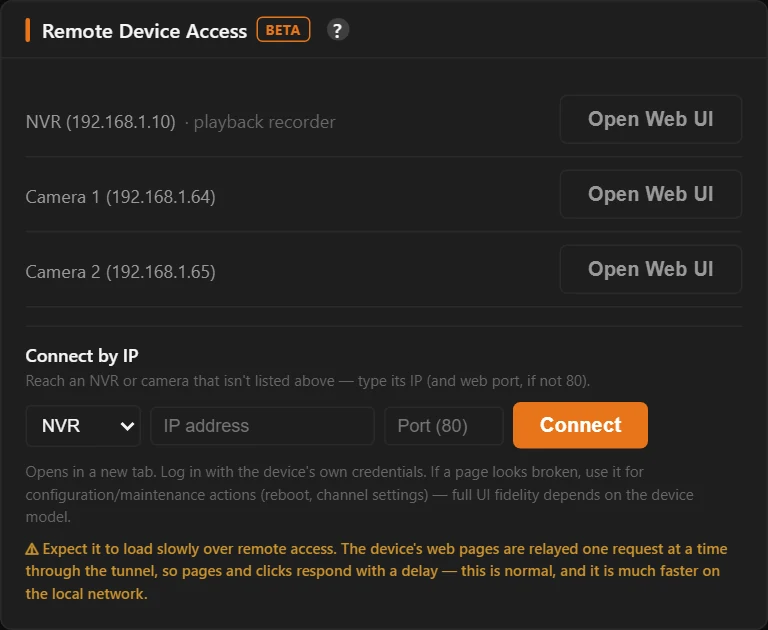
The same protected line can open the own settings page of your recorder or of a register camera, from anywhere, without opening anything on the store's network. The card lists the recorder and the cameras the unit knows; Open Web UI opens one in a new tab. For a device that is not listed, Connect by IP takes its address, its web port if that is not 80, and whether it is a recorder, a camera or something else.
- Sign in there with that device's own user name and password.
- The settings pages work: a reboot, a channel setting, the time. The device's own live video player may not show through it.
- Only admin accounts and iLinkPro support see this card.
Maintenance
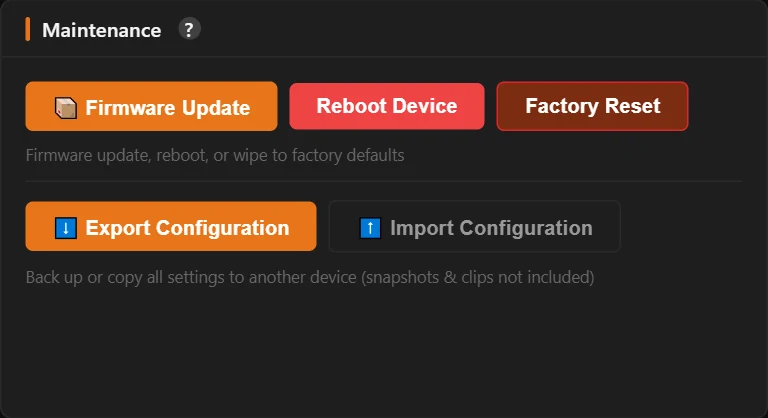
| Firmware Update | The update page described above. |
| Reboot Device | Restarts the whole unit, after you confirm by typing the word it asks for. It is back in a few minutes; the recorder finds the cameras again by itself. |
| Export Configuration | Saves all settings in one file. Do it once the installation is finished and keep the file: with it, a replacement unit is set up in minutes. Snapshots and clips are not in it. |
| Import Configuration | Puts the settings of such a file back. |
| Factory Reset | Erases all settings. Only together with your installer or iLinkPro Support. |
Scheduled Auto Reboot, next to it, can restart the unit at a quiet hour every day or on chosen days. It is off as delivered, and most stores never need it.