
6Finding what happened: Search / Logging
Owner's and installer's guide · edition 2026-11-23 · firmware 2.4.22
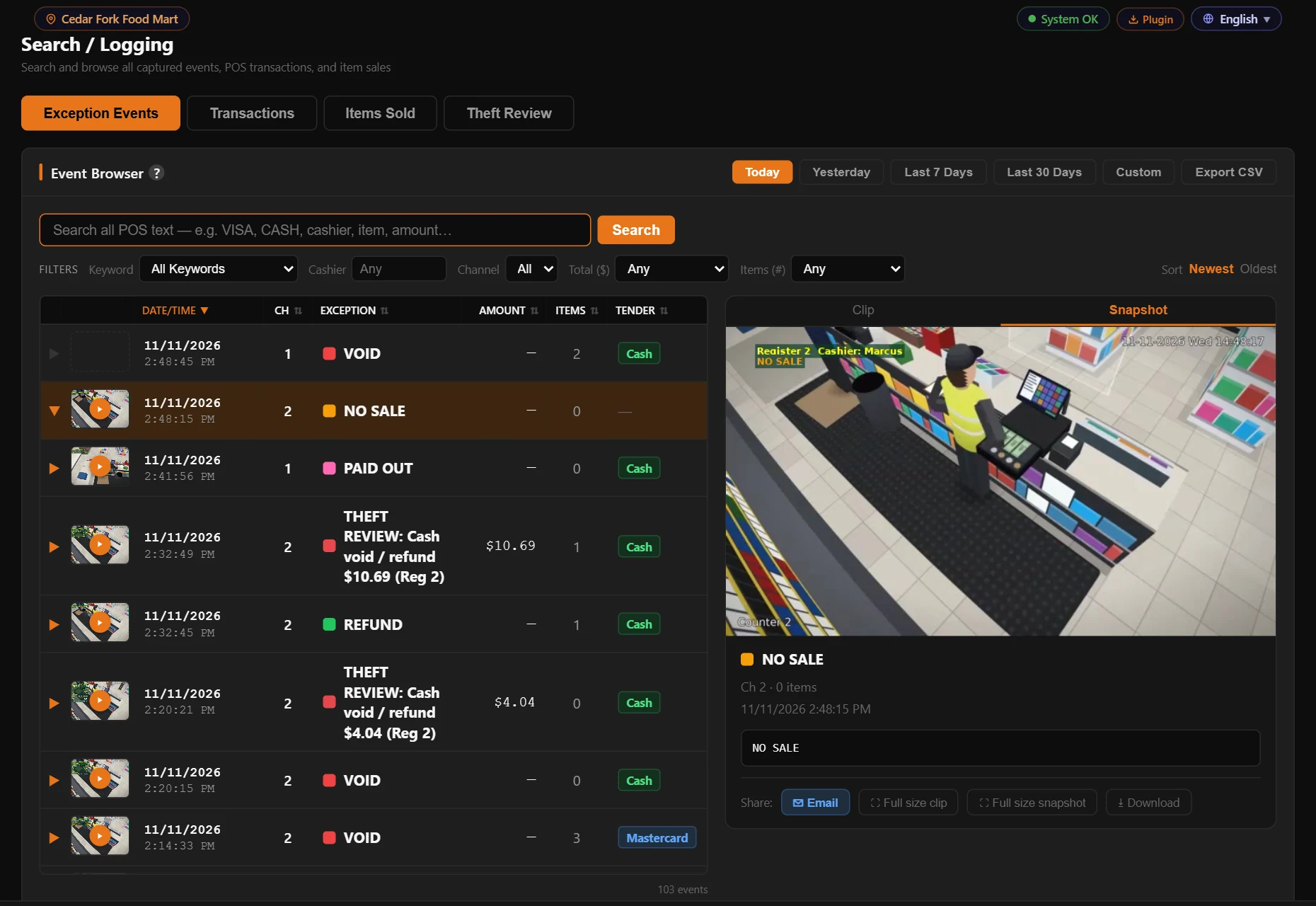
Everything the unit has seen is kept here, ready to be found again: every exception with its picture and clip, every sale with its items, and every item that was sold. You do not scroll through video. You pick the moment from a list, and the unit shows you the counter in that second.
 1
2
3
4
5
6
7
8
9
- Search / Logging, Exception Events, Yesterday.
- Under Keyword choose NO SALE. Six lines are left instead of sixty.
- Click each one and look at the Snapshot. Five show a customer waiting for change. One shows an empty counter.
- Play that one's Clip: the seconds before the drawer opened, and what happened to the cash after.
- If you need it for a talk with the employee, Download the clip, or note the time and play the longer recording on your recorder.
Every sale: the Transactions list
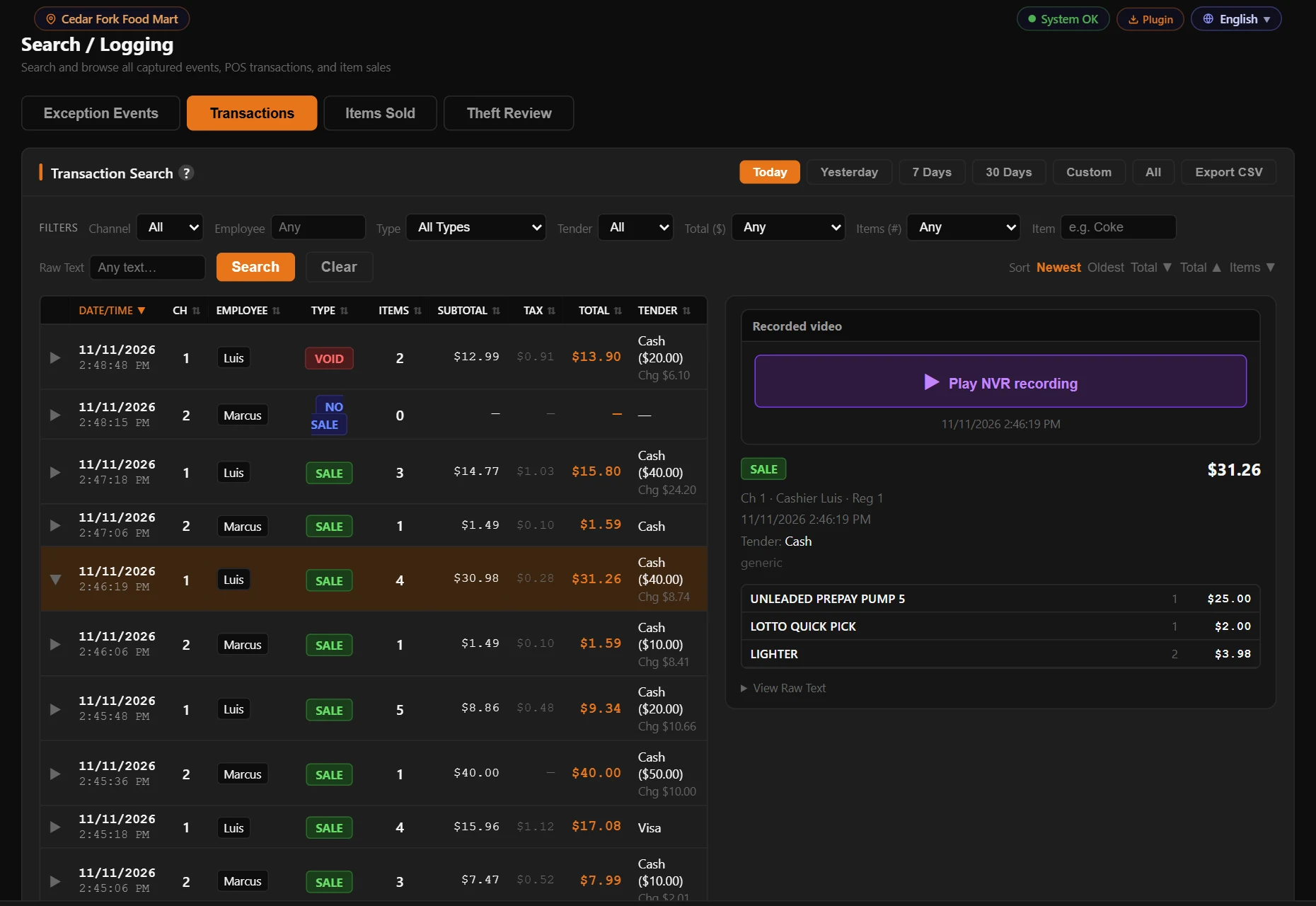
While Exception Events lists only what a keyword caught, Transactions lists every sale the registers rang up, each with its cashier, its type, its total and how it was paid. The filters go further here:
| Filter | Finds |
|---|---|
| Employee | Everything one cashier rang up. |
| Type | Only sales, or only voids, refunds, no-sales, payouts, suspended or unfinished sales. |
| Tender | Cash, credit, debit, check, EBT or mobile payments. |
| Total ($), Items (#) | Sales above, below, equal to or between amounts; sales with many or few items. |
| Item, Raw Text | Sales that contain a certain item, or any text that was on the receipt. |
Click a line and the right side shows what was sold, item by item. View Raw Text shows the receipt exactly as the register sent it. If your installer has linked the recorder (chapter 5), Play NVR recording plays the recorder's own video of that sale from 5 seconds before it, for as long as you want to watch.
- Transactions, then Custom and the day she was in the store.
- Type the last four digits of her card under Raw Text, or set Total ($) to Equal To the amount on her statement, and press Search.
- One line, or two? Open each: the items, the time, the register, and the picture of the counter settle it in a minute.
What sold: the Items Sold list
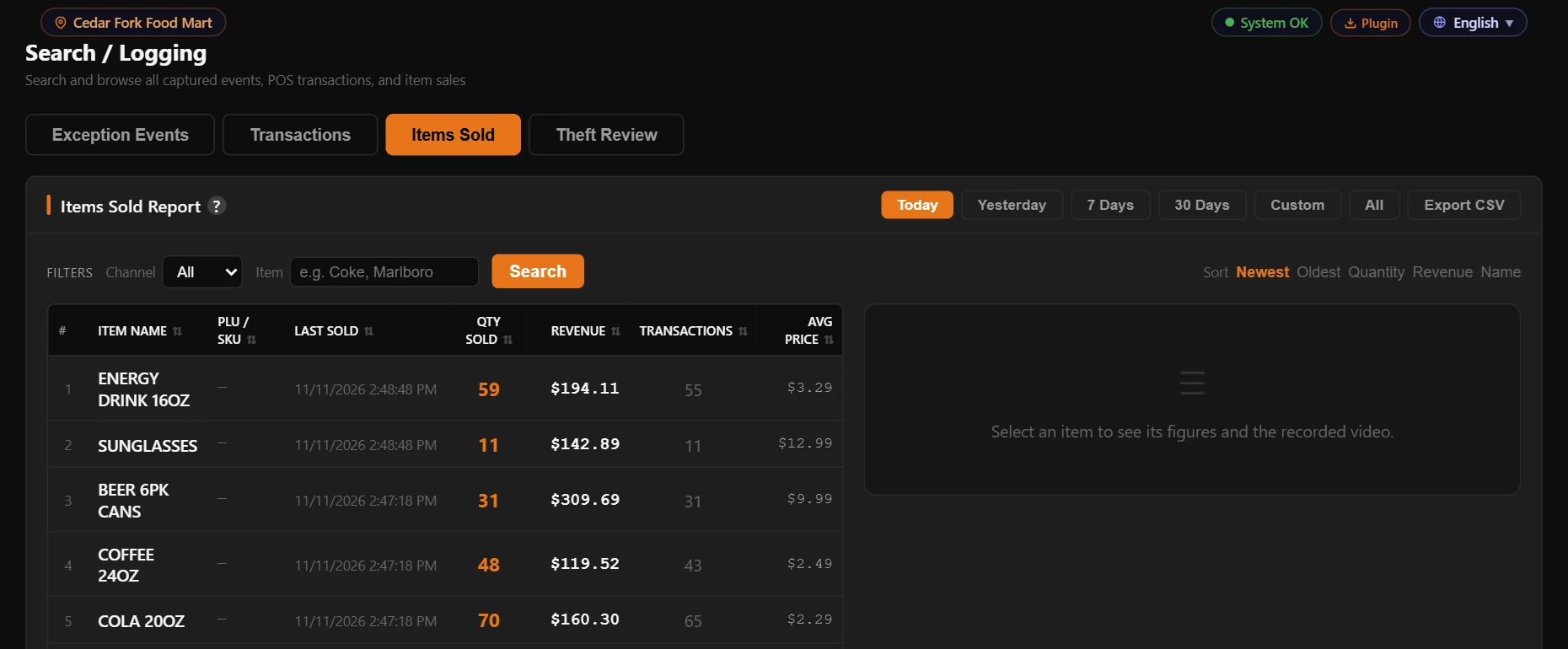
Items Sold adds the sales up by item for the period you choose: quantity, revenue, the number of sales it was part of, the average price and when it last sold. Type part of a name under Item to follow one product, and sort by Quantity or Revenue to see what moves. With the recorder linked, an item's Play NVR recording plays its last sale.
The lists of exceptions and sales reach back 180 days, as the unit is delivered. Snapshots and clips are kept for a shorter time (chapter 7); for anything older, the list still gives you the exact date and time to look up on the recorder.