
10Theft Review BETA
Owner's and installer's guide · edition 2026-11-23 · firmware 2.4.22
Exception keywords tell you that a void or a no-sale happened. Theft Review goes one step further: the unit looks at what happened around it, picks out the ones that fit a known pattern of cash theft, and puts them in a short queue for you to look at. It is a feature in testing, switched off as delivered, and available on units whose hardware supports it.
 1
2
3
4
5
6
What it looks for
| Finding | What the unit saw |
|---|---|
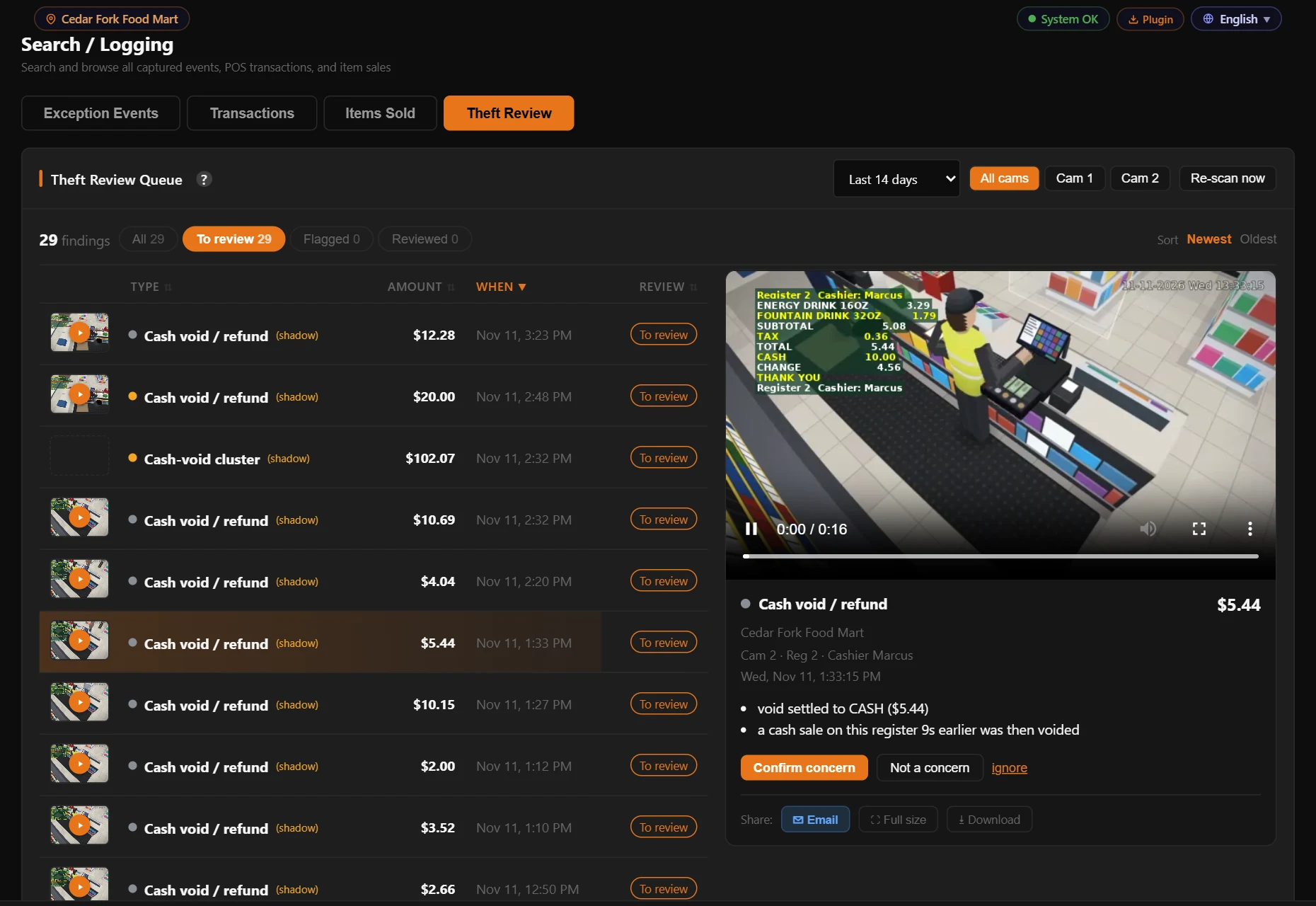
| Cash void / refund | A cash sale was completed, and shortly afterwards the same amount was voided or refunded in cash on the same register. |
| Refund without a sale | A cash refund with no matching sale before it. |
| Drawer opened with no sale | The cash drawer was opened although nothing was being rung up. |
| Nobody at the counter | On a unit set up for it, the camera's picture is taken into account as well: a void or a refund while no customer is standing at the counter weighs more. |
| Cash going to a pocket | On a unit set up for it, and with a camera that shows the cashier from the counter to the waist: a hand that goes from the open drawer to a pocket. |
| After hours | Movement at the register at a time when the store should be closed. |
| More items than rung up | On a unit set up for it, with a camera looking down on the counter and a Scanner line drawn across the scanner: the unit counts the items that pass the scanner, fast scanning included, and sets aside a hand that passes empty. When at least two more items crossed than that register rang up for the sale, the sale goes into the queue. It compares only with the sales of the register that camera watches. A single missed item is not picked, to keep miscounts out of the queue. |
- Open Search / Logging › Theft Review and set the period to Last 7 days.
- Go down the To review list. For each line: read why it was picked, play the clip, and decide. Most take a few seconds: the customer is standing right there, and you press Not a concern.
- What is left under Flagged at the end is your list for the week. If the same cashier, the same hour or the same register keeps coming up, the Reports page (chapter 9) will show the pattern in numbers.
- An empty queue says: Nothing to review in this window. That is the normal, healthy state.
Switching it on
Theft Review is set up per camera, under Settings › Camera(s) › Theft Detection. The tab is there on units that support the feature. Your installer marks the areas of the picture that matter (the cash drawer, the counter, where the customer stands), and the page has placement tips for the camera. For the item count, the installer also draws a Scanner line and chooses under Scanner line belongs to which register that camera watches; on Automatic the unit learns it from the sales first, and picks nothing for the item count until it knows. While the feature is in testing it is free to use; the page states that it is planned as a paid feature once it is released.
Two ways of working are offered. As delivered, findings are only collected in the queue, quietly; such findings carry the mark (shadow). With Live Alerts switched on, a finding also shows up on the screen as it happens and is sent the same way as your other alerts. Start quietly: after two weeks you will know how many findings a normal week brings in your store, and whether you want to hear about each one at once.