
iTIVO-IP™ and iTIVO-IP2: owner's and installer's guide
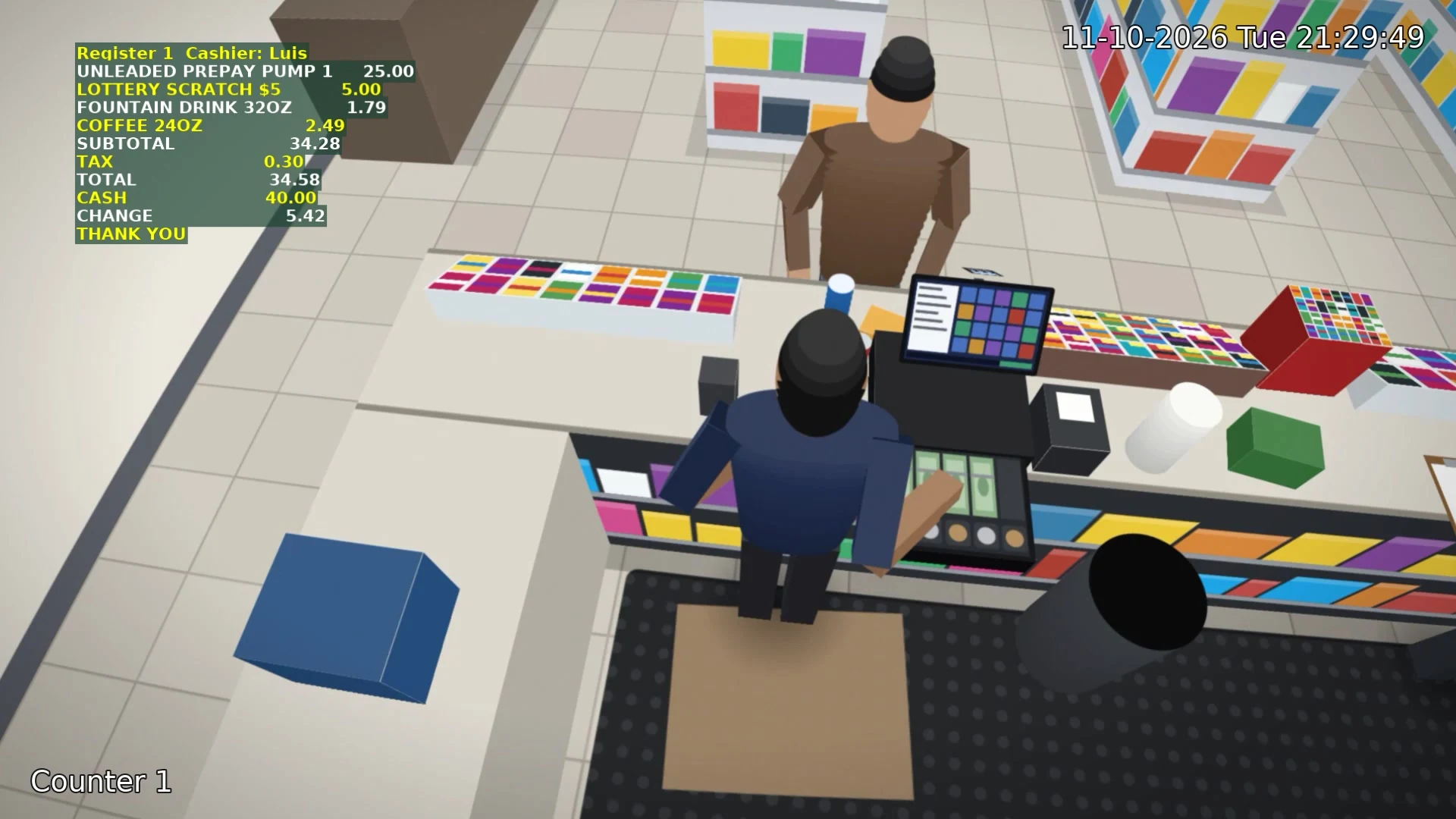
See every sale, void and no-sale on the video of your register, find it again in seconds, and get an alert when it matters. This guide shows how to use it day by day, and how to install it.
Edition 2026-11-23 · firmware 2.4.22 · 23 chapters
Start hereWhat the unit is, and how it sits between your cameras, your recorder and your register.
1What iTIVO-IP doesiTIVO-IP sits between the camera above your register and your recorder. It prints every line the register rings up onto that camera's video, as it…2How it connectsThe unit is a small box that sits near your recorder or your register. Nothing is replaced: your camera, your register and your recorder all stay.…
For the ownerSigning in, watching live, finding what happened, alerts, reports and the people who may see them.
3Signing inThe unit has no program to install. Its pages open in the browser you already use, on a computer, a tablet or a phone: on the store's own network, or…4The DashboardThe Dashboard is the first page after you sign in. It answers one question in a few seconds: is everything connected and working right now?5Watching livePOS Camera Live View shows your register cameras as they are right now, with the receipt building up line by line while the cashier rings. It is the…6Search / LoggingEverything the unit has seen is kept here, ready to be found again: every exception with its picture and clip, every sale with its items, and every…7Exception keywordsAn exception keyword is a word on the receipt that you want to know about: VOID , NO SALE , REFUND . Every time the register sends that word, the…8Alerts by e-mail and WhatsAppAn alert tells you about a keyword within minutes, wherever you are: an e-mail with the snapshot attached and a button that plays the clip. Three…9ReportsSearch / Logging shows you one moment at a time. Reports adds the moments up: how many exceptions there were and at which hours, how much was sold…10Theft Review (BETA)Exception keywords tell you that a void or a no-sale happened. Theft Review goes one step further: the unit looks at what happened around it, picks…11Users and passwordsEverybody who looks at the unit should sign in with a name and a password of their own. Then a manager can do a manager's work without being able to…12Updates and supportThe unit looks after itself: it installs its own updates at night and keeps a private line open so that you, and iLinkPro Support when you ask for…13When something looks wrongMost things an owner runs into have a short answer. Find what you see in the left column. If the answer ends with your installer, tell them what the…
For the installerFrom the box to a recorder that shows the receipt on the register cameras: wiring, first power-on, camera, register, recorder, and the hand-over.
14Before you startThe unit comes ready to use: iLinkPro has already set it up as the model that was ordered. An installation goes quickly when a few things are known…15WiringThe unit does not sit in the camera's cable. It is one more device on the network: it fetches the camera's video over the network and offers the…16First power-onThe unit arrives ready to use. iLinkPro sets it up before it ships, as an iTIVO-IP or an iTIVO-IP2, the way it was ordered. On site you plug it in…17NetworkTo a recorder, an iTIVO-IP2 is two cameras. So it answers on two addresses over its one network cable: one for channel 1 and one for channel 2. An…18Add the cameraFirst the unit must receive the camera's picture. You do this once for each register camera, under Settings › Camera(s) : channel 1 for the first…19Connect the registerThe unit needs the text of each receipt as the register produces it. A register gives it out through a serial port, over the network, or from the…20Put iTIVO in the recorderThis is the step that makes the receipt show up in the recordings, and the one most often left out. Until now the recorder takes the register…21-22Check your work and hand overTen minutes with this list before you leave save the second visit. Do it with a real sale on each register, not only with what the pages say.23Installer troubleshootingWhat goes wrong on site, in the order of the installation. Chapter 13 has the owner's version.