
11Users and passwords
Owner's and installer's guide · edition 2026-11-23 · firmware 2.4.22
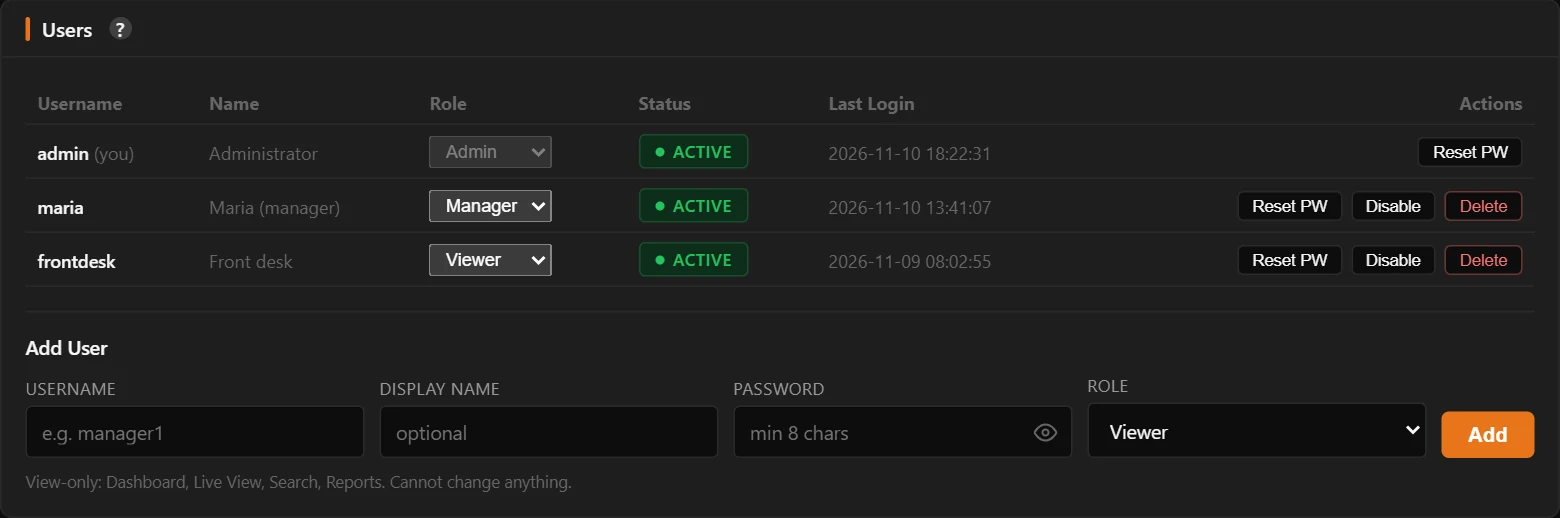
Everybody who looks at the unit should sign in with a name and a password of their own. Then a manager can do a manager's work without being able to change the setup, and when somebody leaves, you remove one name and nothing else changes. All of it is under Settings › Security & Users.
Three kinds of account
| Role | Can see and do | Give it to |
|---|---|---|
| Admin | Everything, including the other users and all settings. | Whoever is responsible for the setup: the owner, the dealer or the IT team. As few people as possible. |
| Manager | Dashboard, Live View, Search and Reports, and the day-to-day settings: Exception Keywords, Notifications, Date/Time. No cameras, network or other setup. | A store manager who also decides which keywords count and who gets the alerts. |
| Viewer | Dashboard, Live View, Search and Reports. Cannot change anything. | Everybody who should see everything and change nothing: the client of a dealer who looks after the unit, managers, an accountant, a screen in the back office. |
- Dealers and installers: when you hand a unit over, create a Viewer account for your client. The client can look at everything from the first day, and the setup stays the way you left it.
- Owners and IT teams: do the same for your managers.
 1
2
3
4
- The same day, Delete their user, or Disable it if they may come back.
- If they ever saw you type the admin password, change it now (below).
- Look at Notifications: is their e-mail address among the recipients? Take it out.
Your own password, and the way back in
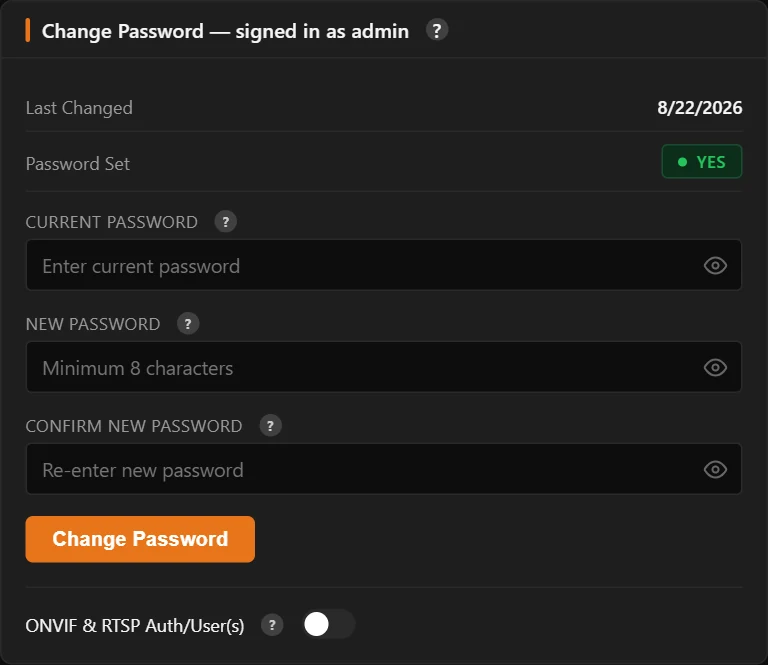
To change your password, type the current one, the new one twice, and press Change Password. A good password is long rather than clever: three unrelated words are easier to remember and harder to guess than one word with a number.
Then prepare for the day you forget it. The same page has three helpers; set them up while you still know the password:
| Helper | What you set up | How it helps on the sign-in page |
|---|---|---|
| Password Hint | A few words that remind you, and only you. Never the password itself. | Show Hint displays it. |
| Security Questions | Three questions and your answers. All three must be set. | Reset Password asks them, then lets you choose a new password. |
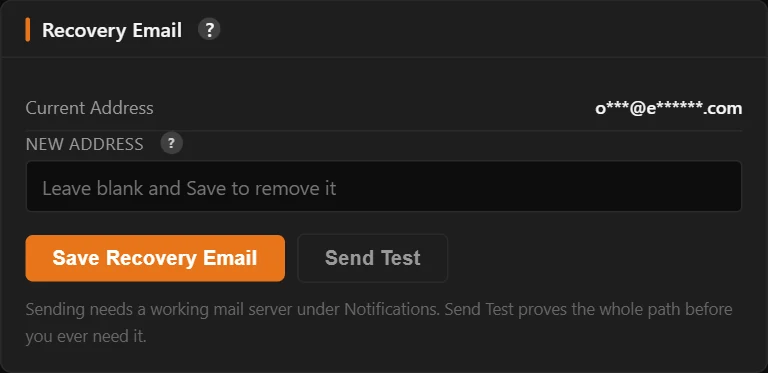
| Recovery Email | An address that is yours. Press Send Test once to see that mail really arrives. | Reset Password, then Email me a reset code instead, sends a 6-digit code to it. |
If none of them works, another Admin can sign in and use Reset PW on your name. If you are the only one, call your dealer or iLinkPro Support (chapter 12): they can let you back in without losing any settings or recordings.
Login security
| Setting | As delivered | What it does |
|---|---|---|
| Max Login Attempts | 5 | After this many wrong passwords in a row, the account is locked for a while. |
| Lockout Duration (min) | 15 | For how long. Nobody can keep guessing, and you only have to wait. |
| Session Timeout (min) | 30 | A page left open and unused signs itself out after this time. |