 Line
6Times, alerts and who is told
Open the board, click Edit, then Board settings. The four tabs: Registers (section 5), Times, Alerts and who is told, and Screen.
Times
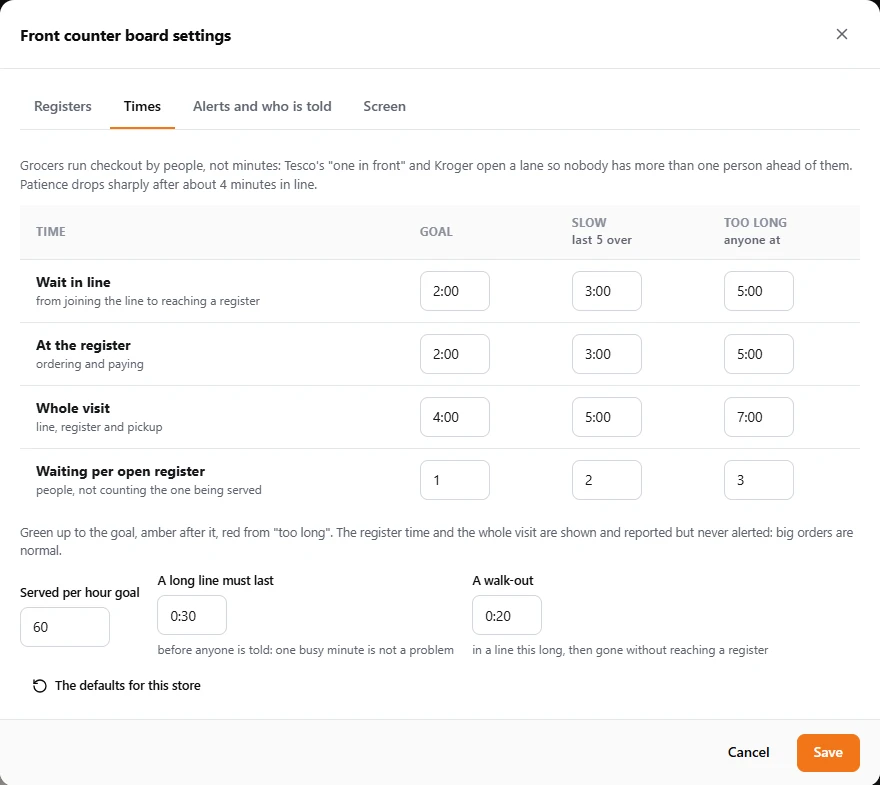
- Goal, Slow, Too long for the wait in line, the time at the register and the whole visit (and pickup, for a restaurant). Green up to the goal, amber after it, red from too long. Type a time as m:ss (2:00) or seconds (120).
- Waiting per open register: people waiting, not counting the one being served, divided by the registers open. The third number is the alert level.
- Served per hour goal, A long line must last (one busy minute is not a problem) and A walk-out (in a line this long, then gone without reaching a register).
- The defaults for this store puts every time back.
The time at the register and the whole visit are shown and reported, never alerted: a big basket or a big order is normal.
Alerts and who is told
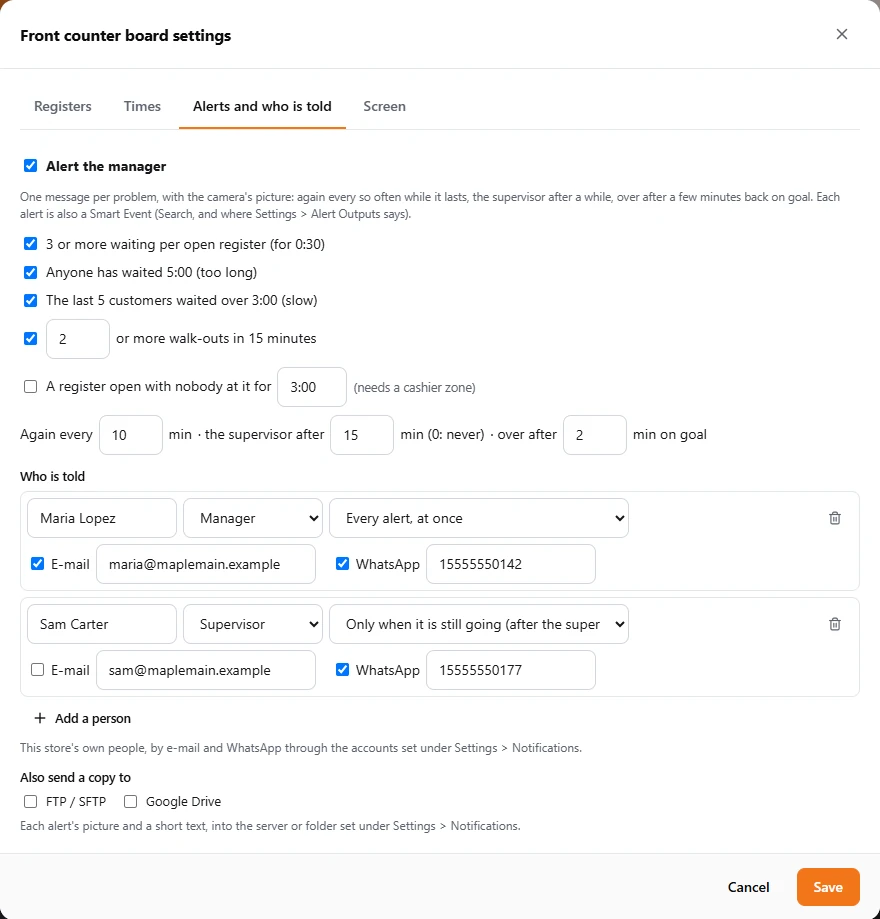
Tick Alert the manager, then what is worth an alert:
| Alert | Sent when |
|---|---|
| Too many waiting per open register | The line stays at the alert level for the hold time (0:30 for a store). The message names the busiest register and, when one is closed, says to open it. |
| Anyone has waited too long | Any customer reaches "too long" (5:00 for a store), at once. |
| The last 5 customers waited over "slow" | The middle wait of the last five served is over "slow": the whole counter is slowing down. |
| Walk-outs | That many customers left a line without being served in the last 15 minutes (moving to another register's line does not count). |
| Pickup (restaurant) | An order waited too long at pickup, or the last five did. |
| A register open with nobody at it | Off by default. Needs a cashier zone: the register is open but nobody has been in its line or at it for that long. |
One message per problem, with the camera's picture and the problem in words. It is sent again every 10 minutes while it lasts, to the supervisor too after 15 minutes, and it ends after 2 minutes back on goal. Each of these can be changed.
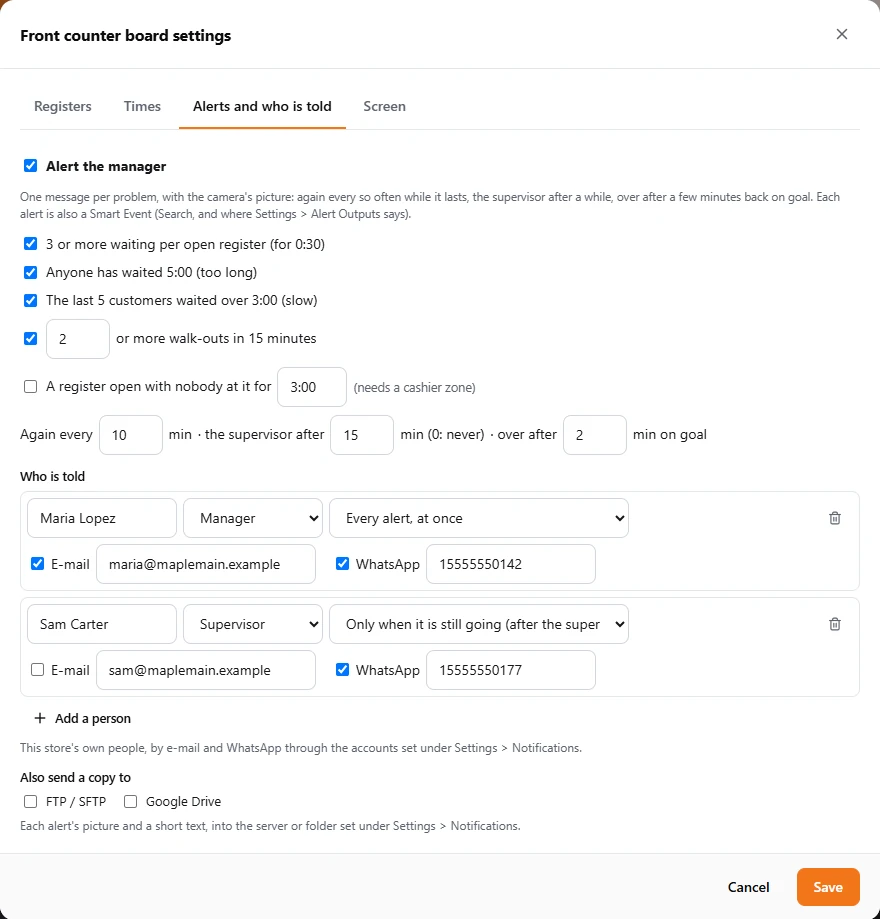
- Who is told: each person's name, their role (Manager, Supervisor, Owner) and what they get: Every alert, at once, Only when it is still going, or Reports only. Tick E-mail and/or WhatsApp and type the address and the number (with the country code).
- Also send a copy to FTP / SFTP or Google Drive: each alert's picture and text, into the server or folder set in Notifications.
- Each alert is also an event in Search, and goes wherever Settings › Notifications & Alerts › Alert Outputs says for the Front counter board row (section 10).
Screen
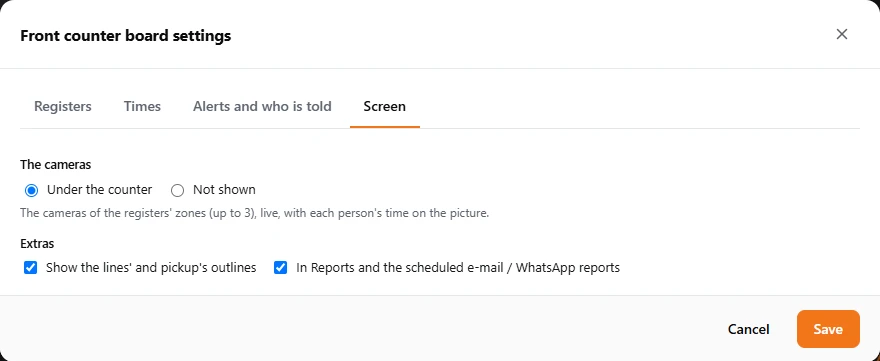
The cameras: under the counter, or not shown. Show the lines' and pickup's outlines on the counter drawing. In Reports and the scheduled e-mail / WhatsApp reports: untick it for a test board.