
Skip to the content
iLink ProfessionalsSmart AI & InsightsGUIDE
All topics (13 of 16)
  1. 1What it does
  2. 2Where it works
  3. 3Before you start
  4. 4Guard a camera: lines and areas
  5. 5More detections
  6. 6When alerts are sent
  7. 7Where alerts go
  8. 8The alert, and finding it again
  9. 9Cameras' own alarms, and more
  10. 10Dashboards
  11. 11Cards, charts, heat maps
  12. 12Zones and lines
  13. 13TV, phone, full screen
  14. 14How it counts
  15. 15When something looks wrong
  16. 16Setup checklist

Smart AI & Insights › Guide › Every day: TV, phone, full screen

13Every day: TV, phone, full screen

The dashboards update by themselves, every few seconds for live numbers.

TV mode

TV shows the tab full screen on a dark background, sized to fit the screen with no scrolling: for a TV in the office or behind the counter. A TV plugged into the gateway's HDMI port can start straight into a dashboard in TV mode, with no PC (Support › HDMI Output, set up by your installer).
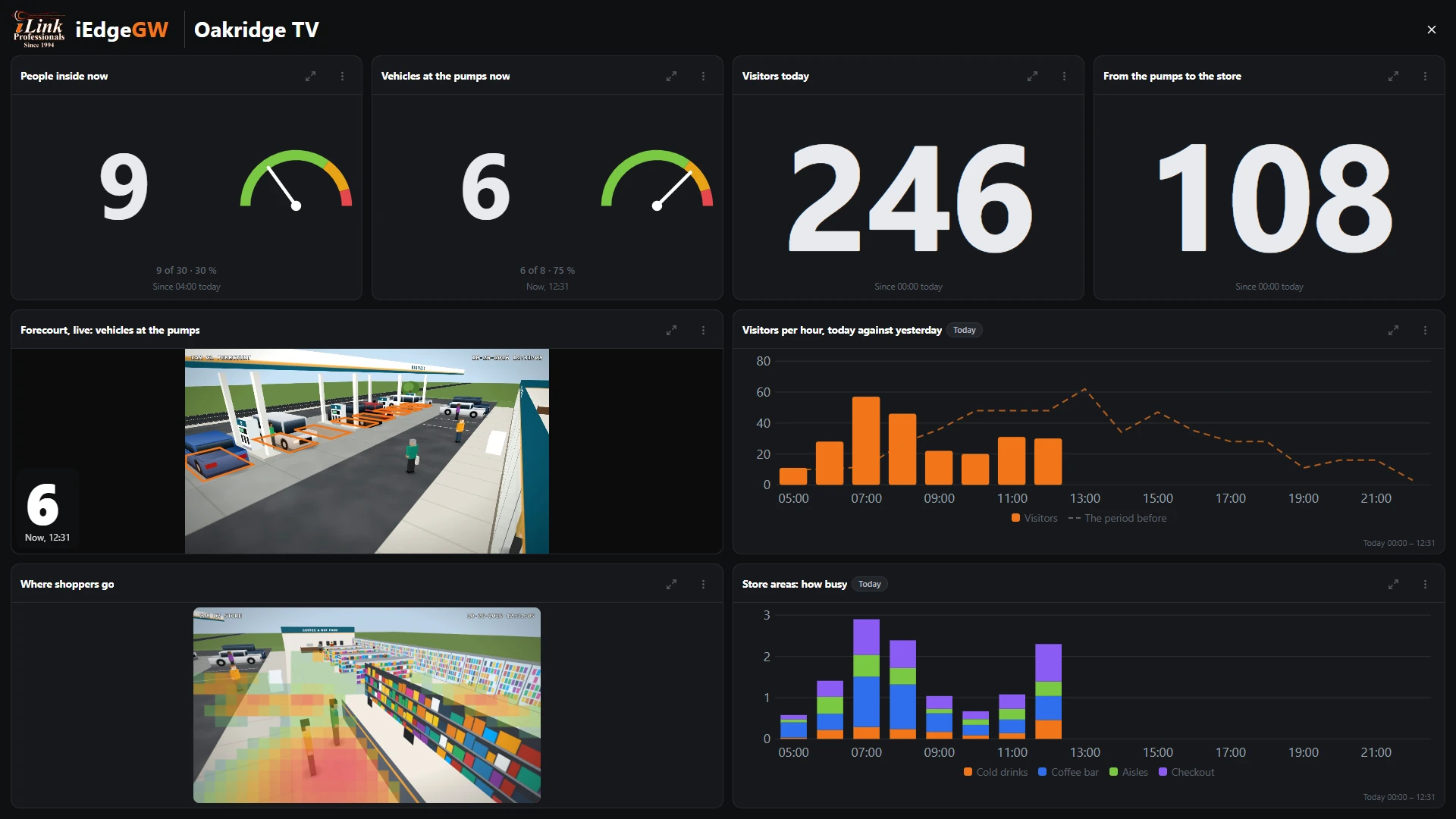
"Oakridge TV": a shorter dashboard made for the TV over the counter, bigger cards, in TV mode.

A card full screen

The ⤢ button on a card opens it full screen: a camera with its zones, a heat map, a chart for a meeting. Esc closes it.

On a phone

Sign in to the gateway from the phone's browser, on site or away. The cards stack one under another, in the dashboard's order.

The numbers behind a chart

A card's ⋮ menu downloads what it shows as a CSV file, for a spreadsheet.
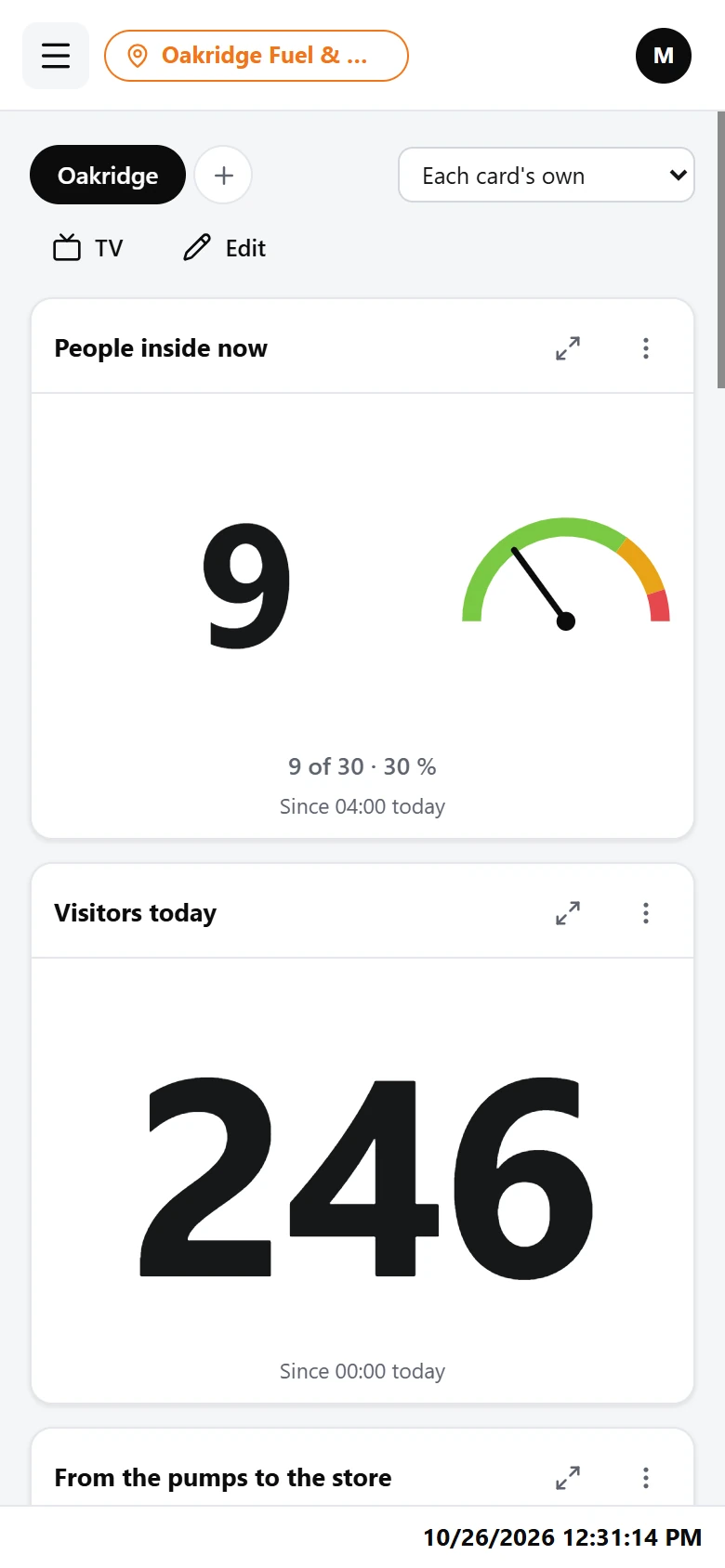
Smart AI & Insights guide: Every day: TV, phone, full screen
The same dashboard on a phone.

Stuck on a step?

iLink Professionals supports owners and installers. Call, or send us a message.