 Smart AI
9Your cameras' own alarms, and more
Alarms from the cameras and recorders
Many cameras and recorders raise their own alarms (line crossing, intrusion, motion, video loss). The gateway takes them only where you turn them on: Alert Outputs › Events from cameras and recorders, per device and per kind. They then go where their kind goes, like the gateway's own.
The AI checks them first
A camera's or recorder's own person or vehicle alarm (line crossing, intrusion, loitering, person, vehicle) is checked by the gateway's AI before you are told: if the AI sees nothing like it in the picture, the alarm is kept in Search (marked AI: none) and sent nowhere. This is on by default (Settings › Analytics › Advanced settings › Double-check camera alarms). Alarms the AI cannot check (motion, video loss) go on as they are.
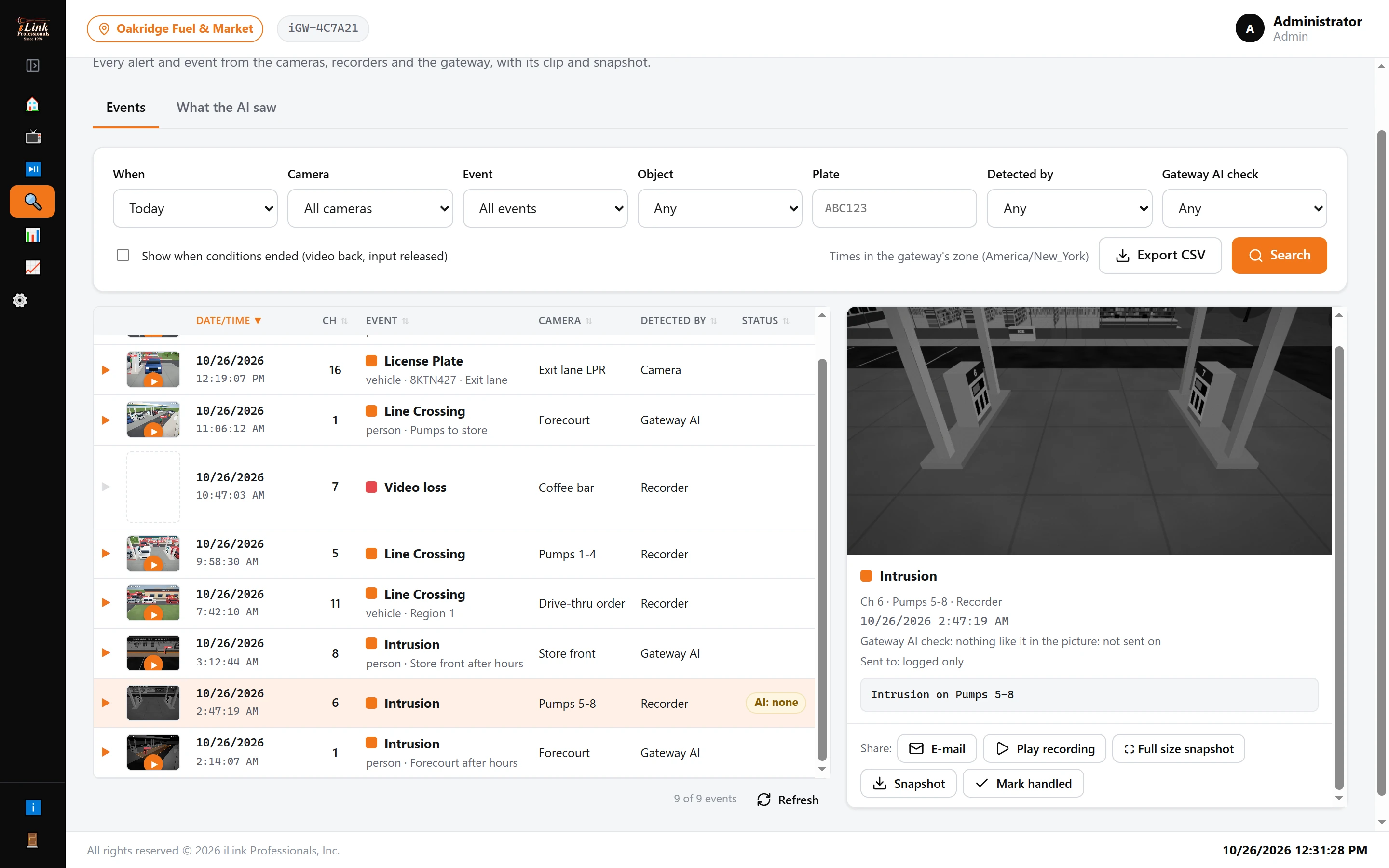
The gateway's own alarms get a second look too: in hard scenes (night, rain, lights, a shaking camera) the more accurate model looks again before the alarm goes out.
A camera that stops working
Cameras / NVR › Health alerts: a camera or recorder offline for 2 minutes is reported by e-mail and WhatsApp (on by default).
Live View and Playback, on site or away
Live View shows the cameras, with the AI's boxes and your lines and areas if you like. Playback plays what your recorders stored. Away from the site, open the gateway's remote address in a browser (About › Remote access, with a QR code to scan) and sign in: no app and no port forwarding.