 Drive-Thru
1What the board does
The drive-thru board times every car from the moment it joins the line until it leaves the window, live, from the cameras you already have. No loops in the ground, no headsets, no extra boxes.
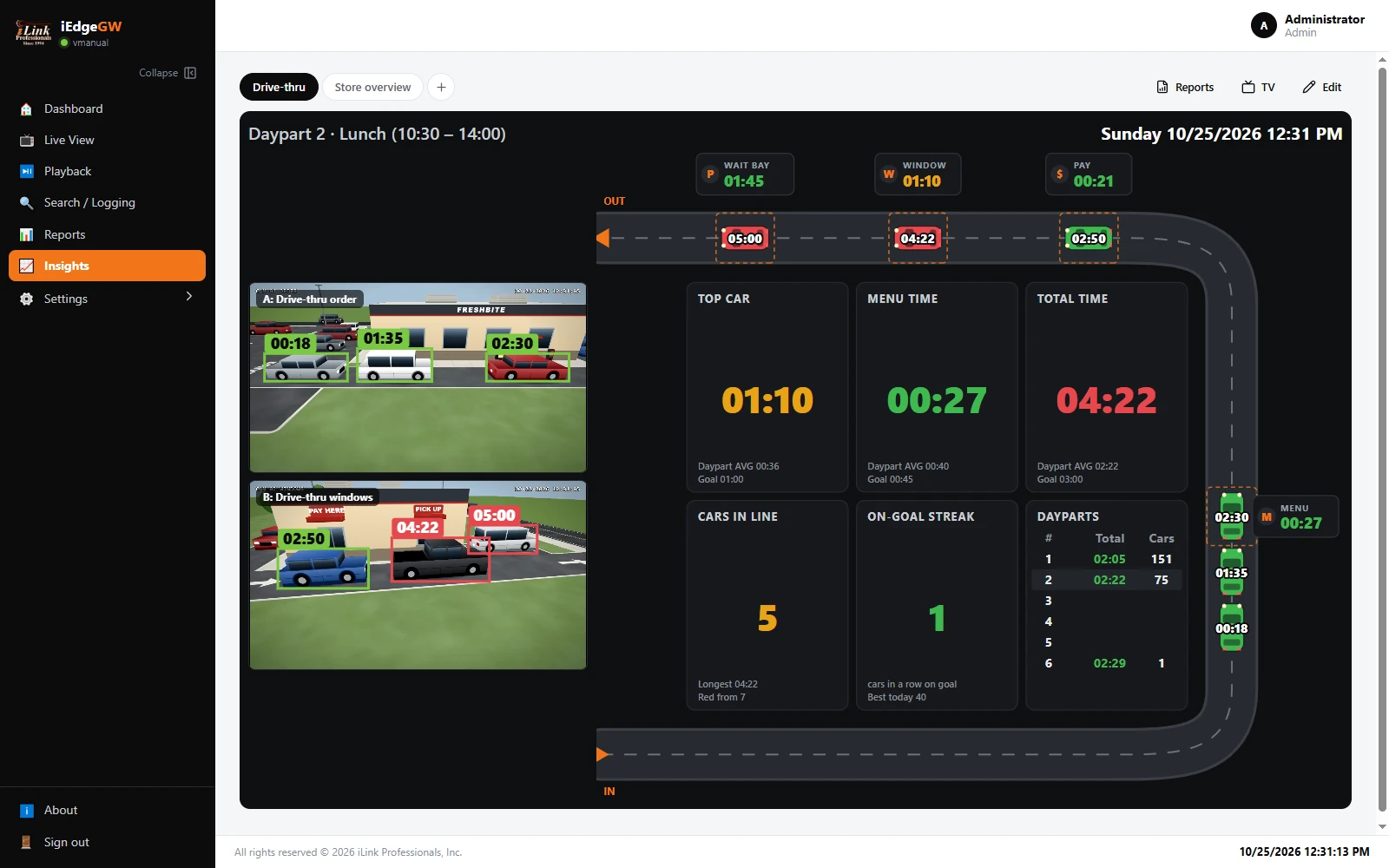
1The daypart and the store's time. Breakfast, lunch, dinner... you name them and set their hours.
2The lane. Every car is a car icon driving the lane, with its time in the lane on it.
3A sign at each point (menu board, pay, window): the car there now and how long it has been there.
4Tiles: the car at the window, a point's time, the lane total, cars in line, the on-goal streak, the dayparts.
5Up to three cameras, live, with each car boxed and timed on the picture.
6Reports (by day, daypart, hour; every car), TV (full screen for the kitchen) and Edit (the board's settings).
The colours
Every time on the board is coloured against its goal, which you set (section 6):
| Colour | Means | Example, goal 60 s, amber margin 25% |
|---|---|---|
| Green | At or under the goal. | 0:00 to 1:00 |
| Amber | Over the goal, but within the amber margin. | 1:01 to 1:15 |
| Red | Past the amber margin: someone should act. | 1:16 and more |
In the picture above it is the lunch rush. Five cars are in the lane and one is pulled forward to the wait bay. The car at the pickup window has been there 1:10 (amber), and its total time in the lane, 4:22, is over the 3:00 goal (red).