 Drive-Thru
iEdge Gateway · Setup and user guide
Drive-Thru Speed of Service
Everything an owner or installer needs for the drive-thru board: where the cameras go, which lane type is yours, the set-up step by step, goals and alerts, the kitchen TV, reports, and what to check when something looks wrong.
1
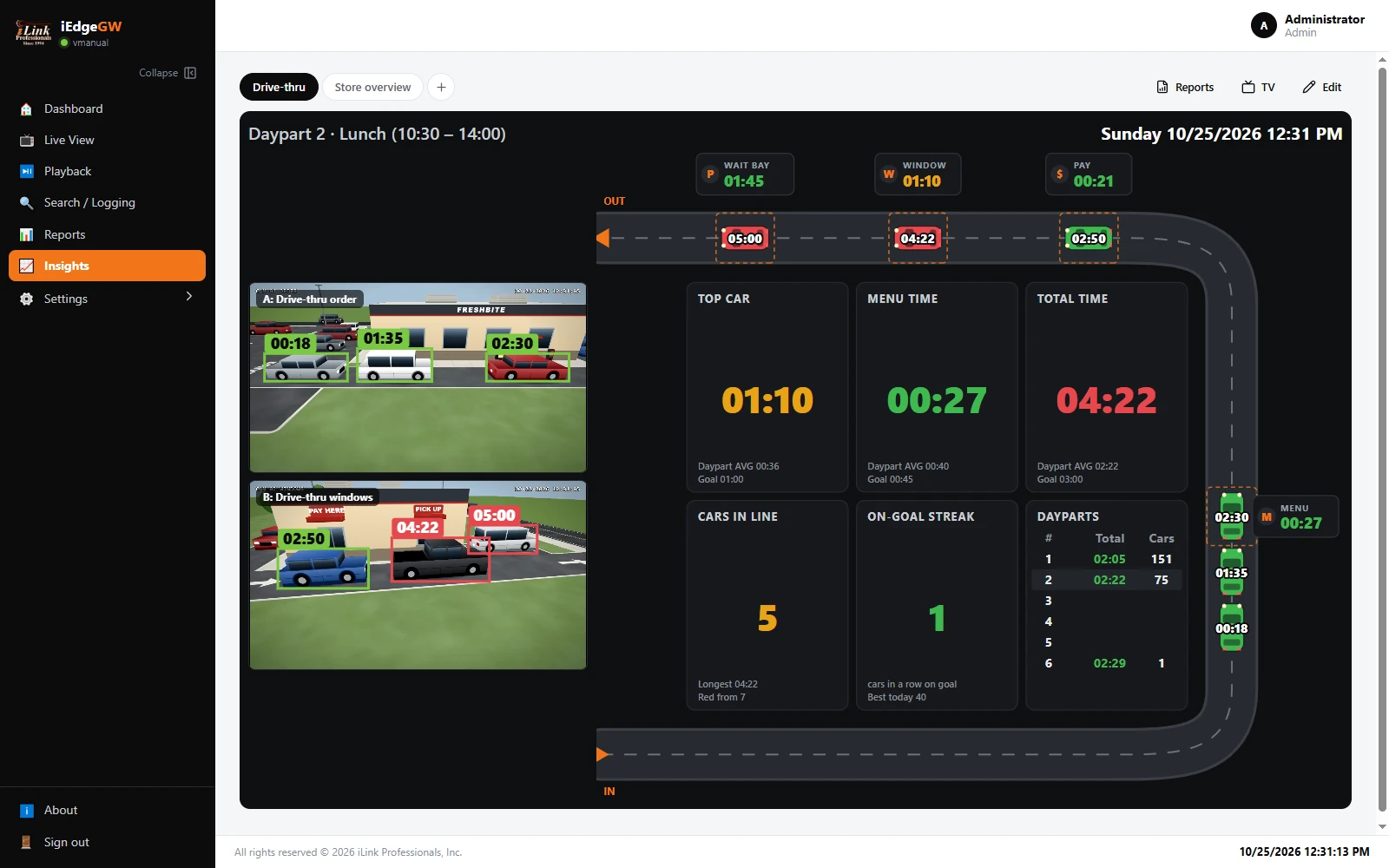
What the board doesWhat the Drive-Thru SOS board shows: every car timed from the line to the window, the colours against your goals, the tiles and the live cameras.
2
Before you startWhat to check before setting up the drive-thru timer: the cameras, their second stream, the gateway's clock and room for the analytics.
3
Where to put the camerasWhere drive-thru cameras go for accurate timing: on the building, past each stop, 8 to 10 ft up, 13 to 26 ft from the car, with the right lens and tilt.
4
Which lane type is mine?Find your drive-thru layout: one lane with one or two windows, tandem menu boards, Y lanes that merge, or dual lanes, and what to pick in the settings.
5
Set up the board, step by stepSet up the drive-thru board in about fifteen minutes: make the board, choose the lane type, draw each point's zone, set the goals, check the zones live.
6
Goals, the screen and alertsSet goals and dayparts for each point, choose what the screen shows, and turn on alerts for a held car, a growing line or a slowing lane.
7
Using the board every dayUsing the drive-thru board day to day: TV mode in the kitchen, reading the board at a glance, and putting its parts on another tab.
8
A TV with no PC: the gateway's HDMI portsShow the drive-thru board on a kitchen TV with no PC: plug the TV into the gateway's HDMI port and give the board its own screen.
9
ReportsDrive-thru reports by day, daypart and hour, the car log with a picture of every car, and reports sent daily, weekly or monthly.
10
Where alerts and reports goSend drive-thru alerts and reports by e-mail and WhatsApp, with copies to an FTP or SFTP server or Google Drive, and choose when alerts go out.
11
How the times are measuredHow Drive-Thru SOS measures each time: when a car counts, when a stop starts and ends, and how the lane total is worked out.
12
When something looks wrongWhat to check when drive-thru times look wrong: missed cars, zones in the wrong place, camera problems and alerts that stopped.
13
Setup checklistA printable checklist for setting up the drive-thru timer: before you start, during set-up and after.
Stuck on a step?
iLink Professionals supports owners and installers. Call, or send us a message.